HandbookAI assistant
Work with the assistant
How to talk to the assistant in the chat dock: send messages and files, choose what it may use, follow its plan, step in while it works, and take back what it did.
This page assumes a key is set up (Set up the assistant). For a guided first session, see Tutorial: build it with the assistant.
The chat dock#
The chat sits at the bottom right of the Model page. When it is collapsed you see the input line and a minimap of the canvas; click into the input and the conversation opens above it. Drag its top edge to make it taller.
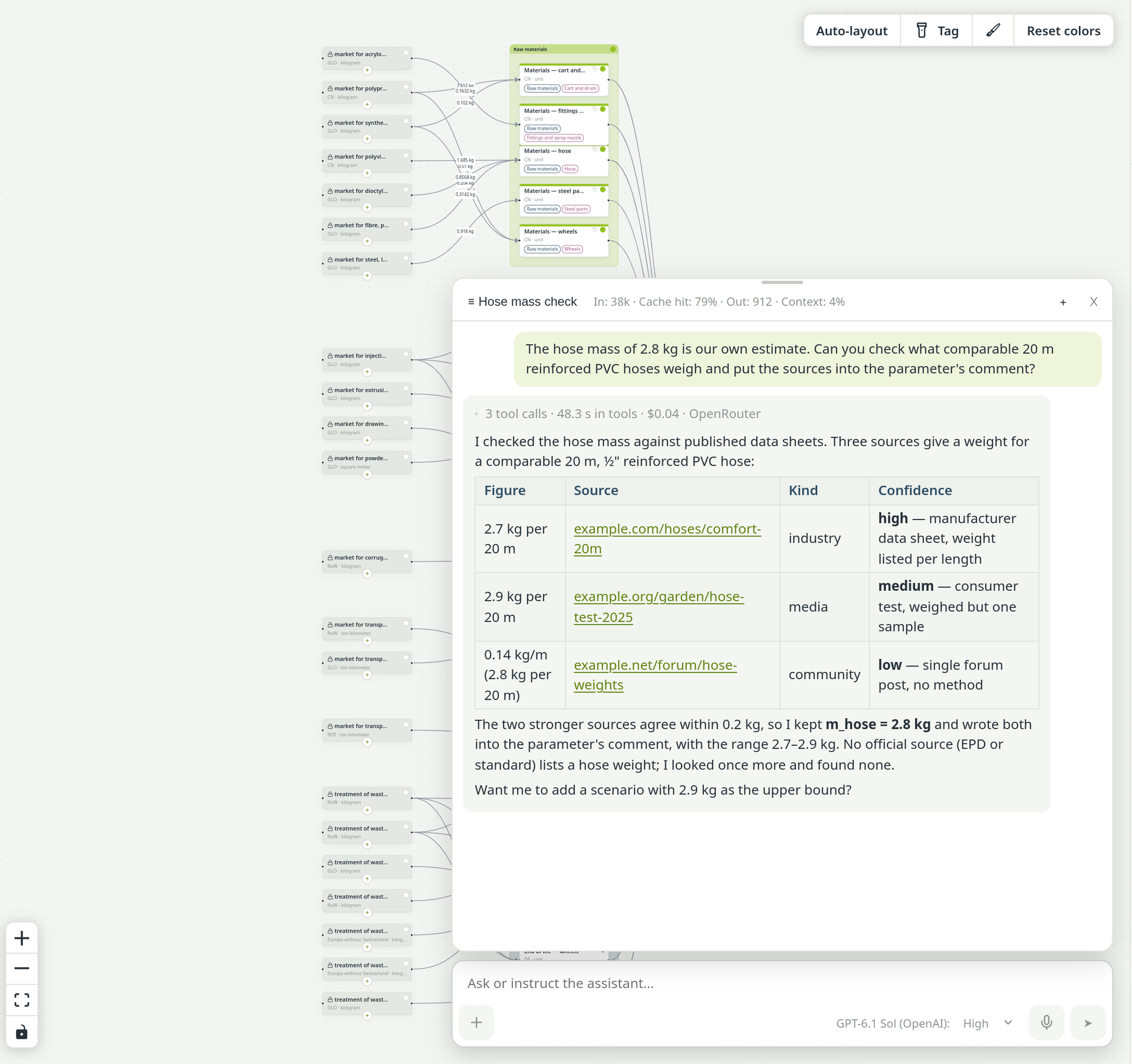
The header has three controls:
- ☰ chat title (Switch chat)
- Opens the list of this model's chats. Click one to open it; ✕ deletes it. A chat in which the assistant is still working is marked working.
- + (New chat)
- Starts an empty conversation. Use a new chat for a new task: a short conversation is cheaper and keeps the assistant focused.
- ✕ (Collapse)
- Folds the conversation away. A running task keeps going.
Every chat belongs to its model. You can start a task in one model, open another one and give the assistant a second task there; both runs continue. The header then shows 1 other run, and when a run finishes while you are elsewhere, a row under the toolbar says Assistant finished (or Assistant failed) with Open to go there.
Send a message#
Type and press Enter to send; Shift+Enter starts a new line. Write in plain words, as you would brief a colleague — Good prompts has examples. In the answers, process names can appear as links: click one to jump to that process on the canvas.
When the assistant needs a decision from you — the functional unit, which of several datasets, an end-of-life assumption — it asks with a question card: clickable options and a text box, confirmed with Answer. If you are on another page, a banner under the toolbar tells you a question is waiting; Go to chat takes you there.
Attach files#
Give the assistant what you have: a supplier datasheet, a bill of materials, a photo of a type plate, your own notes. Choose + → Attach files, or drag files onto the chat (“Drop files to attach them”). Each file shows as a chip above the input until you send.
- PDFs and images go to the model as they are, so it reads tables and diagrams as drawn. A model that cannot read images is told what it was sent and that it could not see it.
- Spreadsheets and Word files (.xlsx, .xlsm, .docx) and text formats (.csv, .txt, .md, .html) are converted on your computer first.
- Up to 10 files per message, 30 MB together, 15 MB for one PDF.
Attached files are stored with the workspace. The message you sent lists them underneath; click a name to open the file, or the folder icon to show where it is kept. The assistant can open a file again later instead of answering from memory.
The + menu#
The + left of the input holds the attachment button and the switches for this chat. Switches you set belong to the chat; a new chat starts from the defaults again.
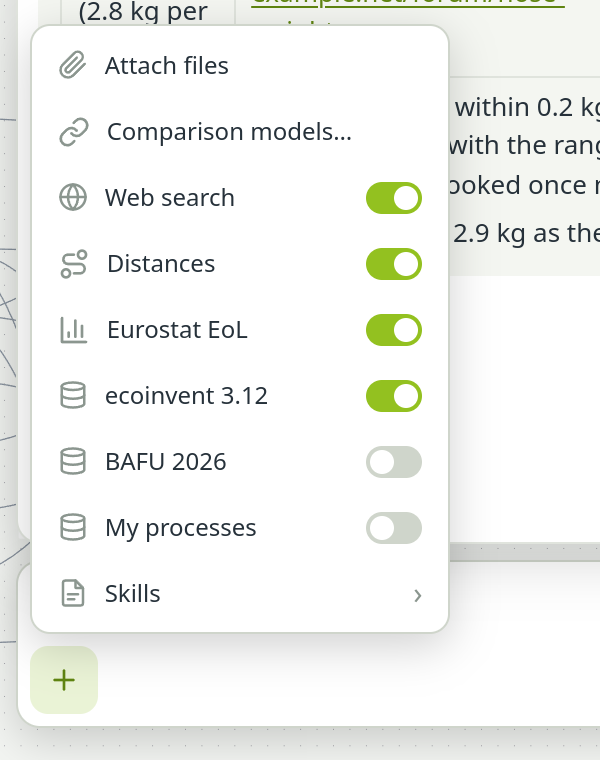
| Entry | What it does |
|---|---|
| Attach files | Picks files to send with your next message. |
| Comparison models… | Links the models this one will be compared with on the Results page. Each linked model then gets its own switch: on, the assistant is briefed on it and keeps this model consistent with it. |
| Web search | On by default. The assistant may search the web and open links. Off, it is not offered its research tools either: it works from your data, the databases and what it already knows, and asks you for a figure it cannot find there. See Research and review. |
| Distances | Only shown when you have a key for transport distances. The assistant may look up road, sea, air and rail kilometres. |
| Eurostat EoL | On by default. The assistant may read official Eurostat waste statistics for end-of-life scenarios. |
| Background databases | One switch per installed background database: which ones the assistant searches in this chat. |
| My processes | Off by default; shown when your library has datasets. On, searches include your library, and each hit is marked as yours. |
| Skills › | Opens the list of skills with their switches, and Add skill. These are the same switches as in Settings, so they apply to all chats. See Skills and tools. |
A switched-off tool is not offered to the assistant at all — it is not even told the tool exists.
One model per chat#
The assistant works on the model whose chat it runs in. It reads and changes that model and may rename it, but it does not open, create, copy or delete models, and it changes no other model. So its work always stays where its chat is.
- Comparison models linked to this model and switched on in the + menu it can read — to keep this model consistent with them — but never change. It takes over their modelling by rebuilding it here, not by linking to their processes.
- Your library it searches and links as inputs when you release it; its datasets themselves stay yours to edit.
- Tag values it merges only while no other model uses them, because a merge retags every model that does.
For work in another model, open that model and its chat. An external agent connected over MCP is not held to one model.
The plan card#
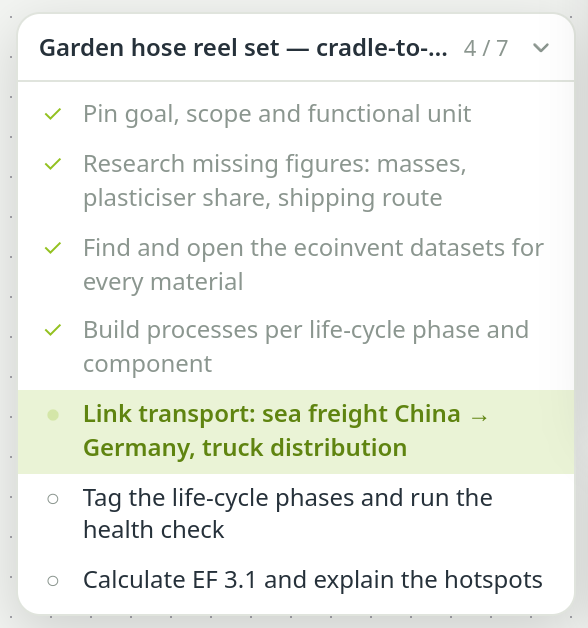
For a longer task the assistant writes a plan first and ticks it off. The plan appears as a card to the left of the chat: the current step highlighted, finished steps dimmed, a dropped step with its reason. Click the header to collapse it to a small pill with the count. The plan is stored with the chat. Some of the strongest models work without a visible plan; that is expected.
Talk to it while it works#
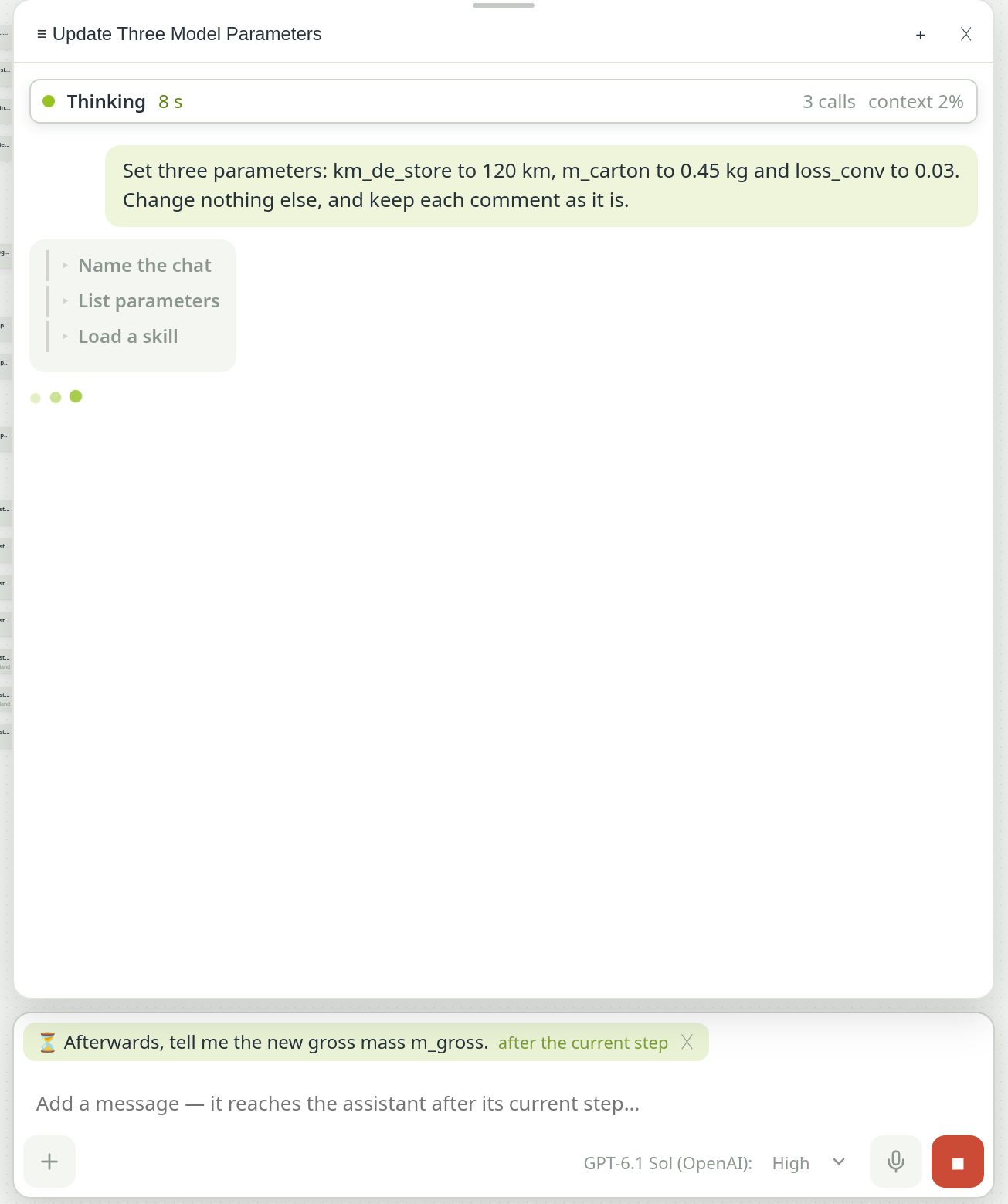
While a run is going, a bar at the top of the conversation shows what the assistant is doing now, for how long, how many tool calls deep it is, and how full its context is. Each tool call is a line in the chat; click one open to see what was sent and what came back.
- Add a remark. Type and press Enter during a run. Your message waits as a chip above the input and reaches the assistant after its current step. The ✕ on the chip takes it back.
- Stop. The stop button in place of Send interrupts the run.
- Continue. When a run stopped before it was done — you pressed Stop, it hit the round or cost limit, the provider failed, or PrismLCA was closed — the plan card (or the chat, without a plan) offers Continue. The assistant re-reads the model before it carries on, instead of trusting its memory. You can also type what you want instead.
- After a cost stop. The first click on Continue turns it into Spend up to another $…, naming your current cost limit; the second click sends.
Approval for irreversible actions#
Almost everything the assistant does can be undone, so it runs without asking. A few actions cannot: deleting or renaming a model, and changing or deleting a custom impact method. Before those, a card asks Allow the assistant to run …?, names what it acts on, and waits for Allow or Decline.
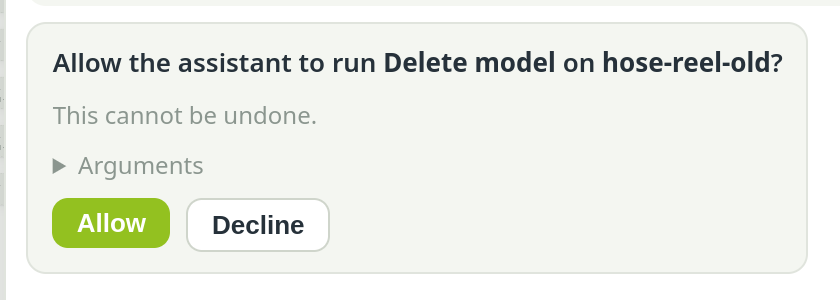
One setting controls this: Ask me before the assistant does something that cannot be undone on SettingsAILimits, on by default. Switched off, the assistant confirms such steps with you in the conversation instead — except deleting a model, a custom method or a method family, which always asks.
Cost and context#
- The chat header shows what this conversation has used: In (tokens sent, including the cached share), Cache hit, Out, and Context — how full the model's memory is. Helpers such as web research are counted too.
- Under each finished turn with several tool calls, one line gives the number of calls, the time spent in tools, the cost and the provider that served it. Click it to see every call.
- In a long task older tool results are condensed once the context fills up; the context figure is marked when that starts.
Spending over time is under SettingsAIUsage & costs, explained in Models, effort and limits.
Voice input#
Click the microphone in the input row to dictate; click again to stop. The recording goes to your AI provider for transcription, and the transcript is sent as your message. Under SettingsAIChat, Offer voice input in the chat shows or hides the button, and Spoken language pins your language — with automatic detection, non-English speech can come back translated into English.
Undo what it did#
Every change the assistant makes lands in the Audit log under its name, like your own edits. Two or more changes from one chat message are grouped in a dashed box headed assistant turn · N changes.
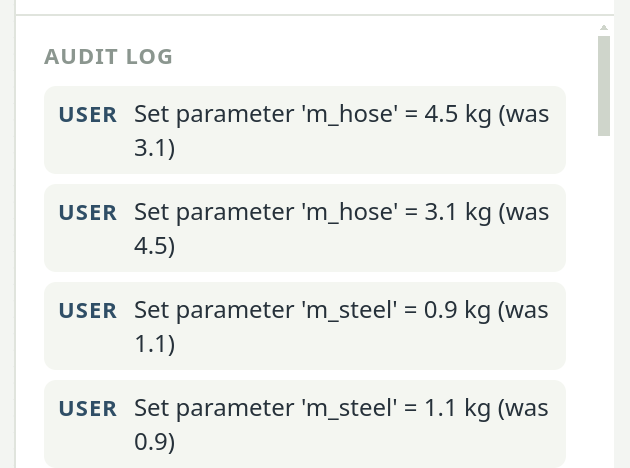
Press Undo in the toolbar. If the last change belongs to a turn with several changes, PrismLCA asks: Undo all N takes back the whole turn, Only the last change takes back one step. A few entries are marked as not part of the undo history. You can also ask the assistant itself to undo its last change. More on this in Check, undo and the audit log.