HandbookModelling
Parameters and formulas
Parameters replace fixed numbers with named assumptions, and formulas compute amounts from them. Change one assumption and every amount that depends on it follows — no spreadsheet on the side.
What they are#
- Parameter
- A named value you define once, such as
hose_mass = 1.8,distance_km = 19000orrecycling_rate = 0.6. Parameters belong to the model that is open: each model has its own set, and two models may both have amasswith different values. - Formula
- A small expression that computes a flow amount, or another parameter, from those names:
hose_mass * 0.05for packaging that is always 5 % of the hose,hose_mass / 1000 * distance_kmfor a transport in tonne-kilometres.
When it is worth it — and when not#
Reach for a parameter whenever a number is more than a one-off constant:
- One assumption, used in many places. Product mass, transport distance, service life, a scrap rate. If the same figure drives several flows, make it a parameter and revise one number instead of hunting for ten.
- Quantities that depend on each other. “Packaging is 5 % of the product mass”, “transport = mass × distance”. A formula keeps the relationship right after the driving quantity changes.
- What-if questions. “What if the recycling rate were 40 % instead of 60 %?” A parameter is the knob, and scenarios compare several settings side by side.
- Sensitivity. Parameters are the natural handles for “which assumption actually moves the result?”.
Add a parameter#
Open Parameters in the sidebar.
Open the form#
Choose Parameter in the toolbar, or the plus on a group's heading to add straight into that group.
Name it#
Fill in Name: letters, digits and underscores, no spaces — e.g.
hose_mass. Formulas refer to the parameter by this name, so make it readable.Give it a value or a formula#
Either a Value with its Unit, or a formula under Or formula, such as
mass * 0.05. Not both: a parameter with a formula is computed.Optionally: group and rule#
Choose a Group, and under Allowed what values are permitted (see below). Then Add parameter.
Everything applies at once; there is no save button. Change a parameter later and every amount that depends on it is recomputed.
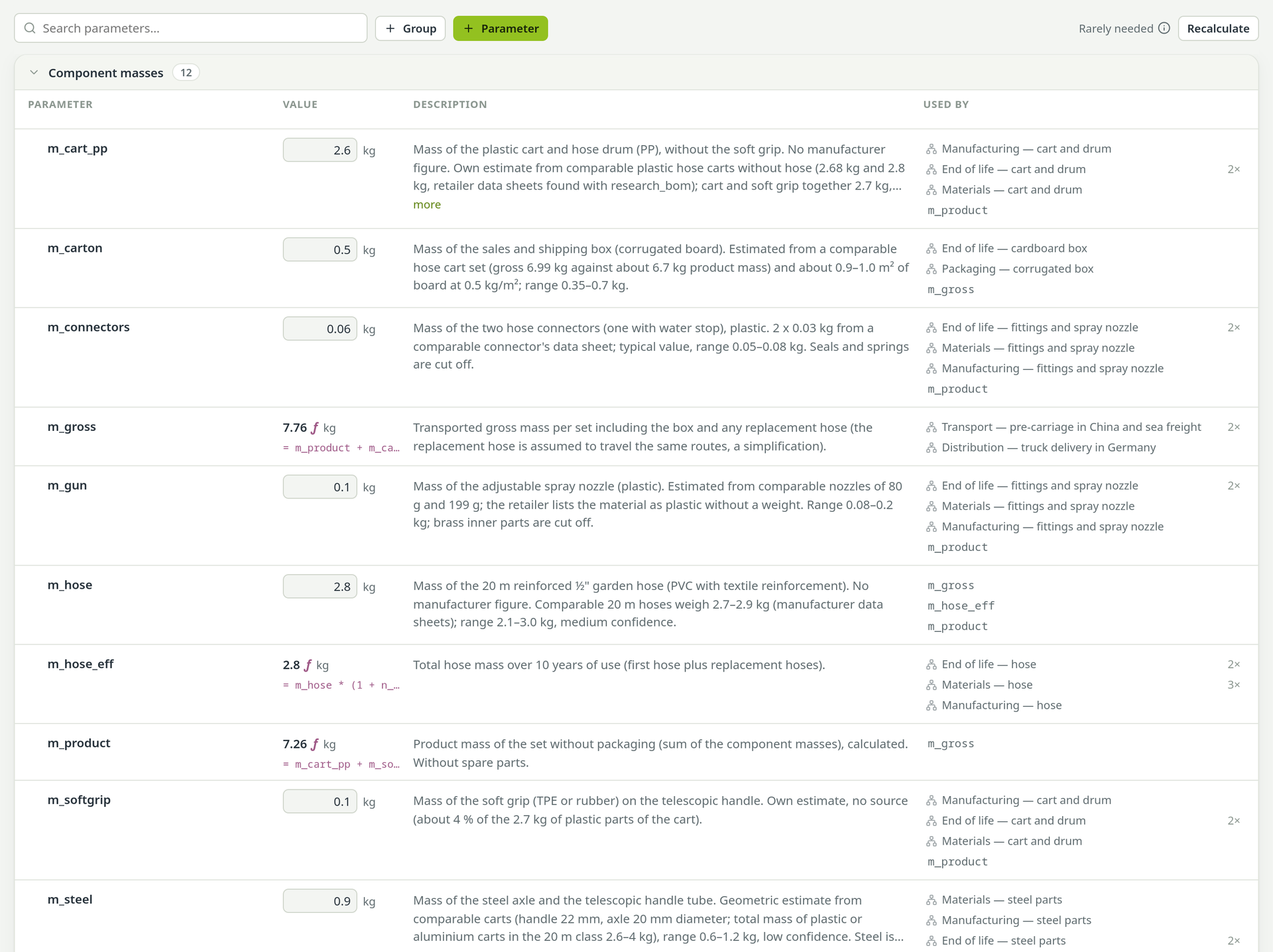
The parameter list#
Each row shows the Parameter name, its Value (a computed value carries a small ƒ and shows its formula underneath), the Description and Used by. Edit a value right in the row. The pencil opens a strip for Formula, Unit, Comment and the allowed values; Add a comment… opens the same strip.
Write the comment: what the number means and where it comes from. You and the assistant both read it, and the report writer uses it.
Search parameters… above the list matches names, values, units, formulas, comments and the processes a parameter drives.
Groups#
Group in the toolbar creates a group; type a name and press Enter. A group heading folds its rows away, and its buttons add a parameter, rename the group or delete it. Deleting a group keeps its parameters; they move to Ungrouped. To move a parameter, drag its row by the name column onto another group.
Used by#
Used by lists the processes whose amounts a parameter drives, with a count when it drives several inputs of one process. Click a process to jump to it on the canvas. A parameter that only feeds another parameter shows that parameter's name. Nothing means no formula uses it — usually a leftover worth deleting.
Allowed values#
A recycling rate of 1.4 is exactly the kind of number that survives every review, because nothing said it could not be that. Set a rule under Allowed, in the add form or in a row's edit strip:
- Any number
- No rule (the default).
- Only positive
- Greater than 0 — a mass, a distance, a count.
- Only negative
- Less than 0 — a credit, an avoided burden.
- Range
- At least and At most. Fill one side only for “at least” or “at most”; an empty side is no bound, not zero.
- From a list
- Fixed choices, written with semicolons:
0.25; 0.5; 0.75. The value then becomes a dropdown, so nothing else can be entered.

A value that breaks the rule is refused with a message under the field that says what is allowed. The rule also holds for what a formula computes (the change is undone), in scenarios and in imported scenario workbooks. A rule that the parameter's current value already breaks is refused too: change the value first.
The health check asks about a parameter that looks like a share or a rate — no unit, no formula, a value between 0 and 1 — and has no rule yet. Give it Range, at least 0, at most 1, if it is one: without the rule, a scenario or a step of the sensitivity analysis can push it past 1.
Formulas on flow amounts#
To drive an input or output of a process with a formula:
Select the process#
Click one of your own processes on the canvas so it opens in the inspector.
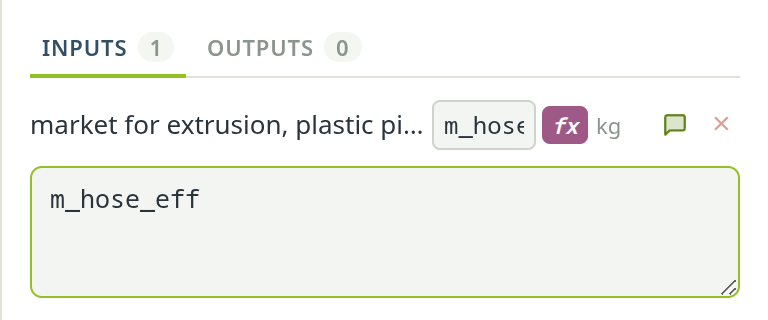
Switch on fx#
Click fx next to the amount. A formula editor opens under the row.
Type the formula#
For example
hose_mass * (1 - recycled_share). As you type a name, matching parameters pop up with their current values; take one with the arrow keys and Enter or Tab, or click it. Press Enter to apply, Esc to abandon.
The row then shows the computed amount with a small ƒ. To go back to a fixed number, click fx again: the amount stays at its last value and no longer follows the formula.
What you can write in a formula#
A formula is a single expression. It can use your parameter names, plain numbers and:
- Arithmetic:
+ - * /, powers with**and brackets —(mass + packaging) * 1.1. - Rounding:
round(x, n),floor(x),ceil(x)— e.g.ceil(hose_length / 20)for a count of whole pieces. - Roots and logarithms:
sqrt(x),exp(x),log(x)(natural),log10(x),log2(x). - Keeping a value in range:
min(a, b),max(a, b),clip(x, low, high)—clip(recycled_share, 0, 1). - Sign and size:
abs(x),sign(x). - A choice:
value if condition else other—0.9 if distance_km > 500 else 0.6. Comparisons< <= > >= == !=andand,or,notare allowed. - Constants:
piande.
Parameters may build on other parameters (transport_tkm = hose_mass / 1000 * distance_km); PrismLCA works
out the order of calculation. Trigonometry, mean, median and other mathematical functions are
also available, but the list above covers almost every LCA need.
The formula field checks what you type before anything is written: an unknown parameter name (with the name you probably meant offered as a one-click fix), a bracket without its partner, two operators in a row. The reason appears under the field and the old amount stays until the formula is fixed.
Recalculate and rounding#
Amounts are recalculated automatically whenever a parameter changes. Recalculate in the toolbar (marked Rarely needed) only forces a refresh if something looks out of sync.
How many digits you see is set under SettingsGeneralRounding (significant digits), with separate fields for Parameters, Inputs / Outputs, Numbers on the arrows (canvas) and Flow Properties. These are significant digits, not decimal places, and only the display is rounded: PrismLCA stores and calculates with the full value. Hover a computed value to see all its digits.
When the result should be per something you parameterised#
If your functional unit is, say, one kilowatt-hour over a device's lifetime, the lifetime output is a parameter but the model still computes per device. Under Model infoObject of study, Set reference quantity divides the result by that parameter, so a scenario that changes it really moves the result.
See also: Build on the canvas · Calculate