HandbookReports
Languages, themes and PDF
Choose the language a report speaks, give it a look and your own title page, and turn it into a PDF — or into editable sources if someone will typeset it further. Everything here applies to the full report; language, colours and theme also apply to the short report.
Report languages#
A report can be written in English, German, French, Spanish or Portuguese. In the full report, the language is under Title & language; in the short report, under Subject. The dropdown names each language in its own words (Deutsch, Français, Español, Português).
The language decides the headings, the generated contents and figure lists, the language the assistant writes in, and the number format — in the tables and in the charts' axis and bar labels alike (1,234.56 in English, 1.234,56 in German). Dataset and method names are not translated; they are identifiers.
Translate study texts#
Your study's own words — process notes, scenario names, declared limitations, the functional unit — are in the language you modelled in, not the report's. An English report of a German study would print German in the middle of a chapter. Translate study texts under Title & language fixes that:
- PrismLCA collects every study text the report prints; the report writing model translates exactly that list.
- The translations are stored on the report. Your model's texts stay untouched.
- Editing a note in the model retires its translation; switching the report language retires the whole set.
- Dataset names, units, locations and people's names are never translated.
Write report runs this step on its own first when study and report languages differ, so the writers see the translated words. It is a paid call Needs an API key.
Intended for disclosure to the public#
The tick box under Title & language marks a report for publication. With more than one subject it adds the ISO 14044 §7.3.3 note on critical review unless a review is recorded in the model info. See Review and approve a report.
Appearance: colours and theme#
The Appearance group answers two questions, colours first, because they repaint every cover in the gallery below.
Colours#
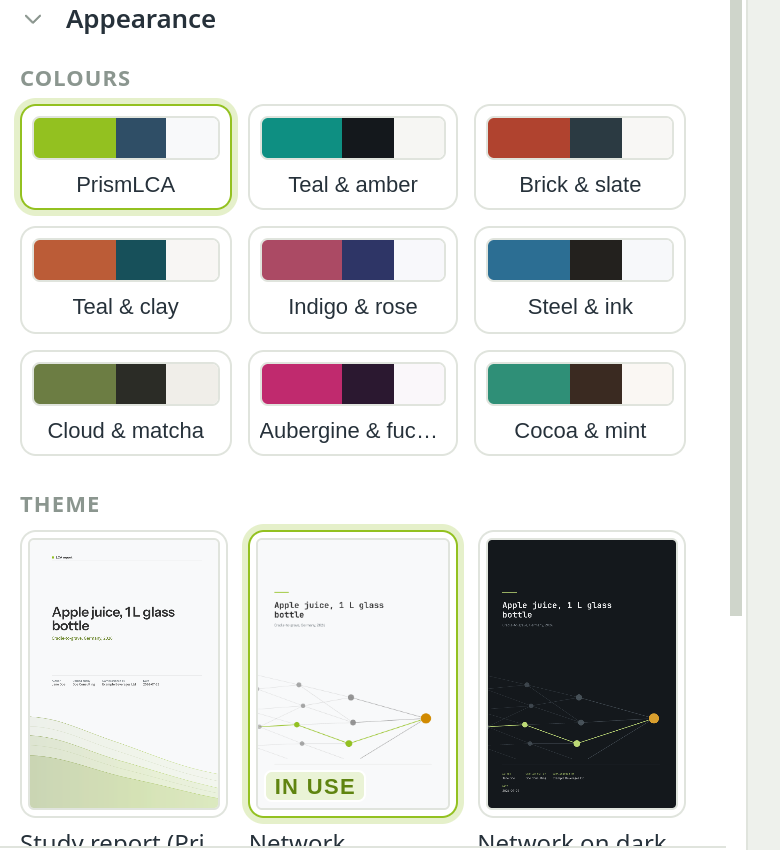
Pick a colour set — PrismLCA, Teal & amber, Steel & ink and others. A set colours the cover, headings, tables and charts consistently. Tick White page background under the sets to print on pure white whichever set you pick; themes with a dark page keep theirs.
To add a set of your own, click + at the right of Colours. Give it a name and choose three colours —
Accent, Deep and Paper — with the colour picker or as hex values such as #2f4e66. The form
starts from the set in use and warns when headings would be hard to read on the paper. Add set picks it for the
report. Your sets are kept on this computer and offered to every report; the greys come from the PrismLCA set. To
remove one, hover over it and click ✕; reports that used it go back to the PrismLCA colours. A report sent as a
.prism file shows PrismLCA colours on a computer that does not have your set, while PDFs and Typst exports keep
your colours.
Theme#
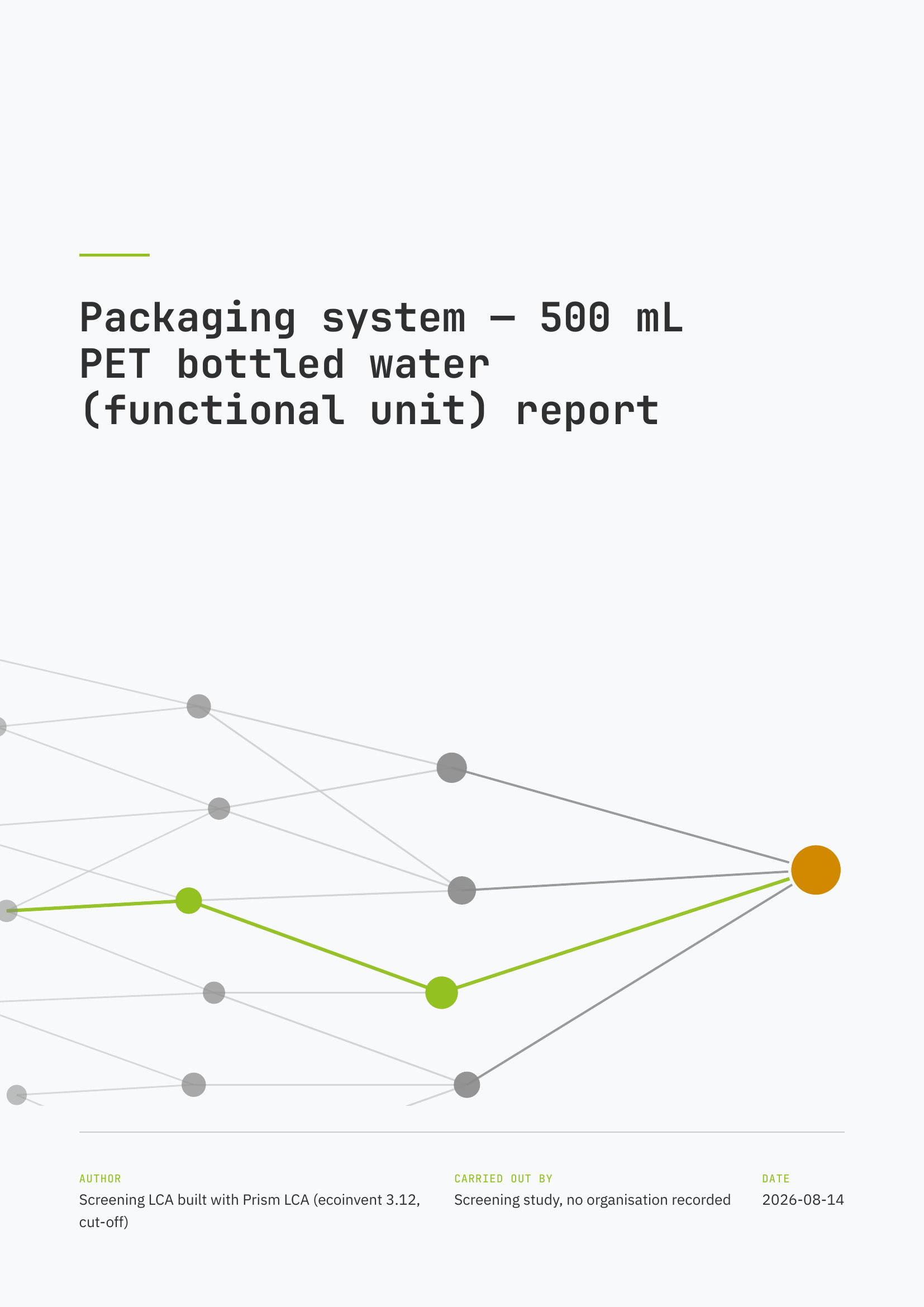
A theme is the whole layout: cover, headings, tables and figures. The gallery shows each theme's cover in the colours you picked. A new report uses Network (PrismLCA Default); the others are Gradient strip, Ribbons, Facets, Flows, Planes, Declining emissions, Network on dark, Shapes and card, Curved band, Serif and rule, and Panel and year. Click a cover to use it; the tile then says in use.
Gradient strip runs a colour gradient down the left edge of the cover, Ribbons sweeps eight bands of colour across it, Flows stacks eight arrow bands down the whole page, Planes lays a few large flat shapes on the paper, and Facets cuts the whole cover into facets like a cut stone, with the date under the title. A colour set has three colours and these covers need more, so the themes work out the missing ones from the set: lighter and darker steps of related hues between its colours. They do the same for colours you pick yourself.
Your own theme#
Themes are written in Typst, a typesetting language. To make your own:
Download a starting point#
Point at a theme's tile and click ↓. You get the theme's
.typfile, which compiles as it is.Edit it#
Change the layout in any text editor. The file is the complete contract between PrismLCA and the theme.
Upload it#
Click + Upload a theme…. A theme that does not compile is refused with the compiler's message; one that leaves out a required piece is told which. Your uploaded themes carry the mark yours and can be deleted with ✕; reports that used a deleted theme fall back to the standard one.
Your title page#
Two places fill the cover:
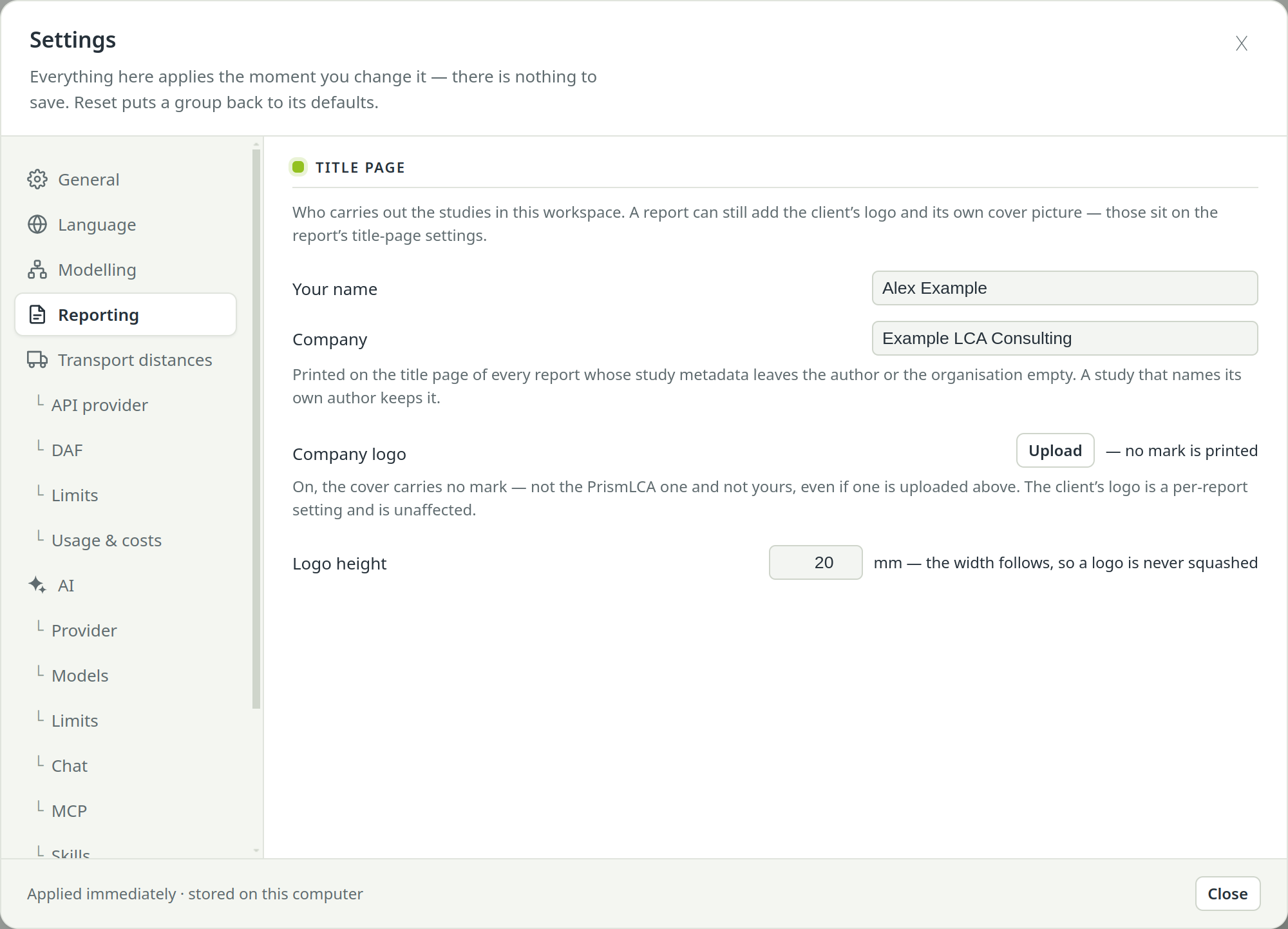
- SettingsReportingTitle page — who carries out the studies in this workspace: Your name, Company, Company logo and Logo height (in mm; the width follows, so a logo is never squashed). Every report uses these.
- Cover, logos & author on the report's Title page row — this report's Cover image (PNG or JPEG; Placeholder puts back the picture that ships with PrismLCA) and a Client logo printed opposite your own. The same sheet repeats the shared identity fields under Used by every report.
Some themes bring their own cover and do not use an uploaded picture (their tile says own cover), and some draw only one logo; the sheet says when that is the case.
Preview, PDF and sources#
Four buttons sit at the foot of the full report's rail:
- Preview
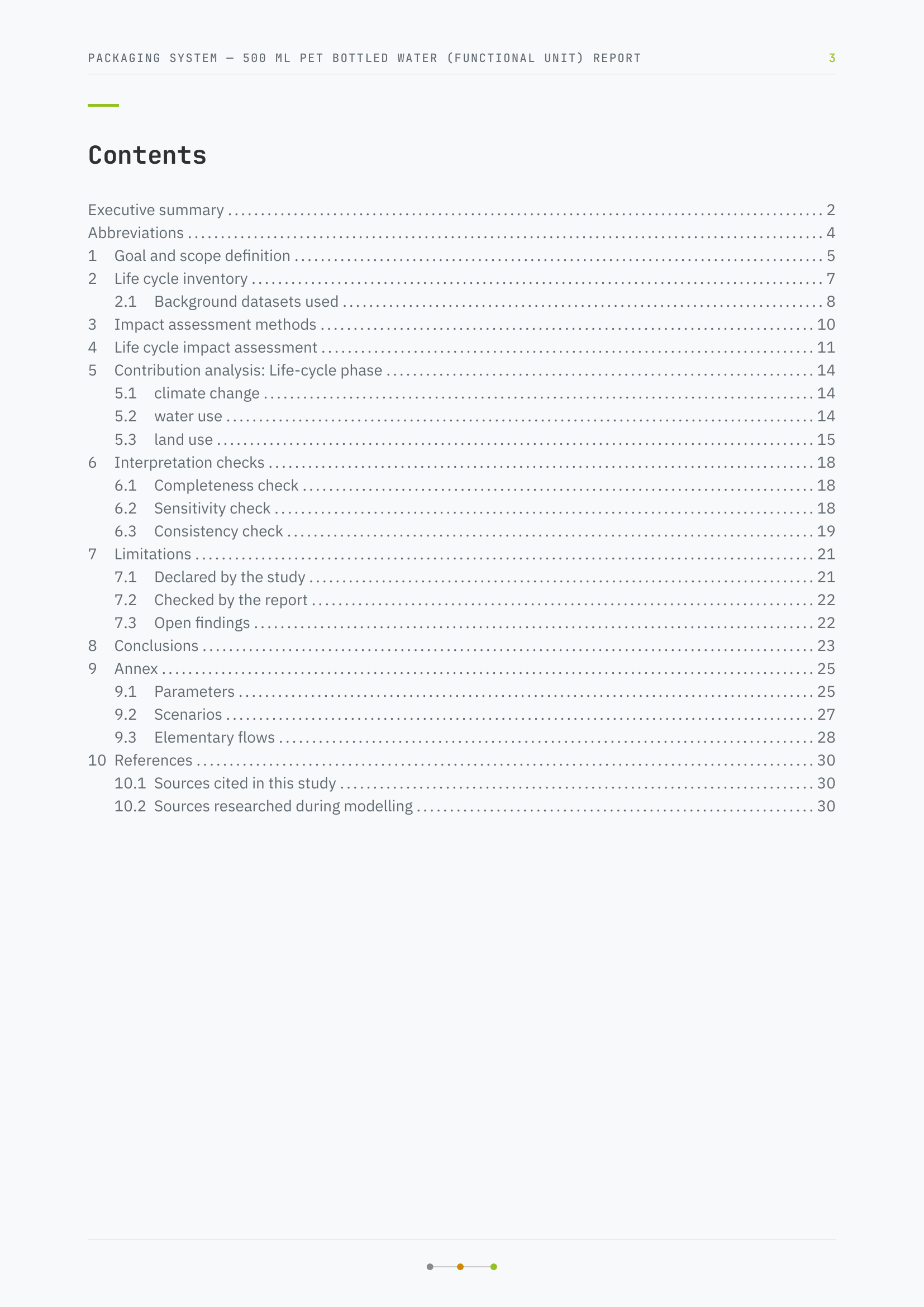
- Typesets the report and shows it page by page, from the same renderer as the PDF. When the report changes afterwards, a banner says the preview is out of date.
- Render PDF
- Typesets the PDF and saves it; the pane says where the file went. It asks first if chapters still await your review or placeholders are unresolved.
- Export sources
- The Typst sources, the theme, the data and the charts as a ZIP — for carrying on outside PrismLCA, or for someone who will typeset the document further.
- Update data only
- Today's numbers and charts as a ZIP, without the prose — to refresh a sources export you have already edited.
Output is PDF. There is no Word export; if you need to edit the layout, use Export sources.
While PrismLCA is still checking what changed under the written chapters, Preview and Render PDF wait a moment, so that no document goes out whose figures have moved but whose wording has not been checked.
Defaults for new reports#
The Defaults group sets the chapter structure new reports in this workspace start with:
- Set as workspace default — the current report's chapters, with their instructions and your additions, become the starting point for every new report in the workspace.
- Reset default — back to the built-in ISO 14044 structure.
Reports that already exist stay as they are.