HandbookExternal agents (MCP)
Connect your agent
Switch on PrismLCA's MCP server, add one entry to your client's configuration — PrismLCA can write it for you — and give the agent its first task. It takes about five minutes.
Before you start#
- PrismLCA is installed and has a workspace with at least one model. See Set up your first workspace.
- One of the supported clients is installed and signed in: Claude Code, Codex (the CLI or the app) or Claude Desktop.
- Nothing else. The connection uses a small bridge that ships inside PrismLCA, so you do not need to install Node, Python or anything else.
Switch the server on#
Open the MCP page#
Click the gear in the top bar and open SettingsAIMCP.
Turn on the switch#
Tick Let external agents drive PrismLCA (MCP server). The text under the switch says what this allows; it applies at once, like every setting.
A moment later the page shows Listening on http://127.0.0.1:…/mcp (this computer only), followed by how many clients are connected. The port is chosen anew each time the server starts; you never have to type it.
Test the connection#
Choose Test connection. PrismLCA starts its own bridge exactly the way a client will and asks it for the tool list. If all is well you read The bridge answered: … with the number of tools, the PrismLCA version and the time it took. If not, the message says why.
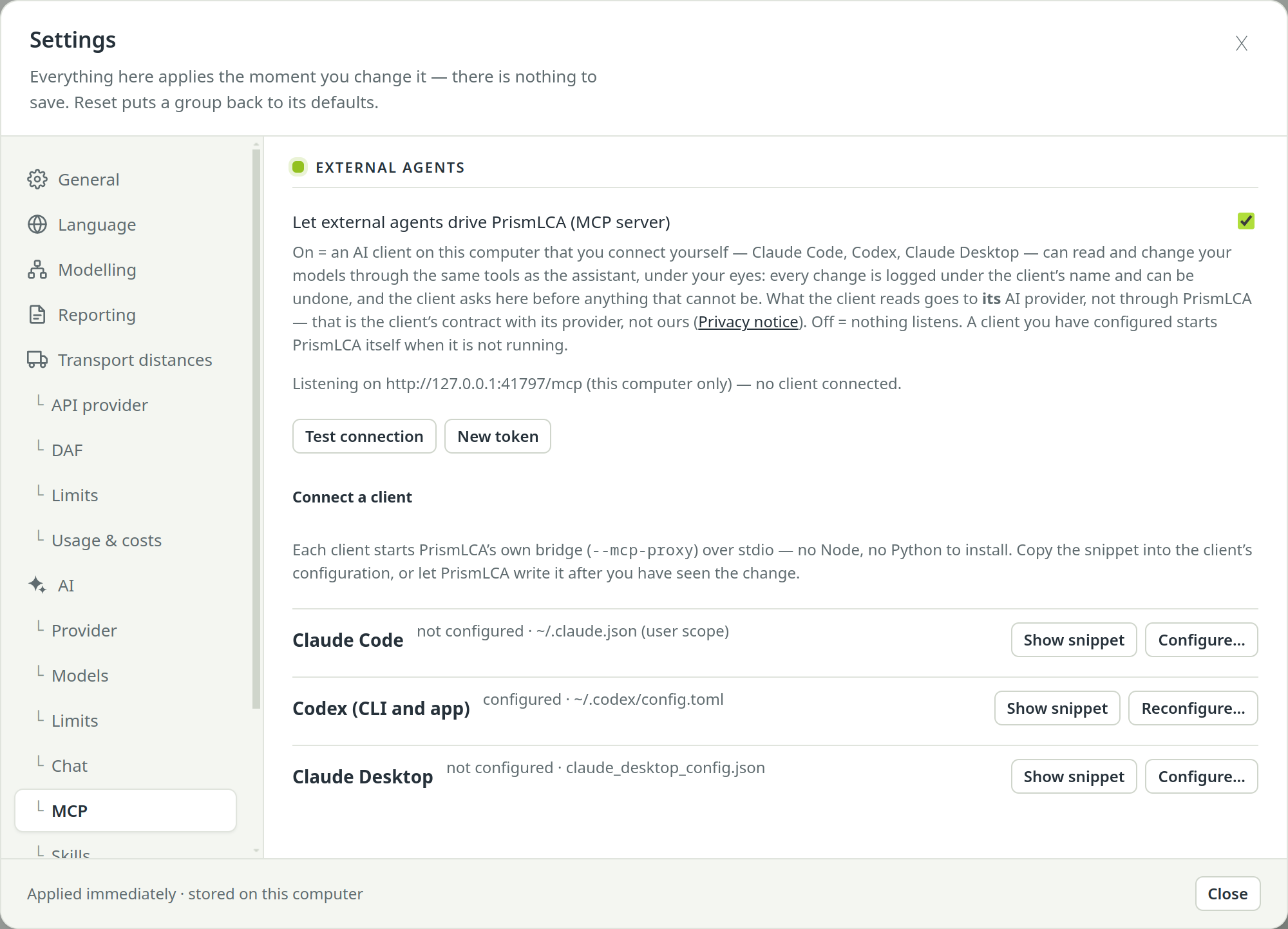
Connect a client#
Under Connect a client there is one row per client. Each row says whether that client is configured, not configured, or whether no configuration file found yet, and which file it uses. You have two ways to connect:
- Show snippet shows the text to add yourself. Copy all puts it on the clipboard.
- Configure… shows what the client's configuration file will look like afterwards. Only the
prismlcaentry is added or replaced; everything else in the file stays as it is. Choose Write to …’s configuration to save it. PrismLCA first copies the current file next to it as a backup (its name ends in.bak-and the date and time) and then tells you where it wrote and where the backup is.
Then restart the client so that it reads its configuration again.
The snippets below show the shape. In the app they carry the real path of your PrismLCA installation instead of
/path/to/PrismLCA, so copy them from there rather than from this page.
Claude Code gets a one-line command. Run it once in a terminal; it registers PrismLCA for your user, in every project:
claude mcp add --scope user prismlca -- /path/to/PrismLCA --mcp-proxyConfigure… writes the same entry into ~/.claude.json instead. Start a new Claude Code session
afterwards. Type /mcp in Claude Code to see whether prismlca is listed and connected.
The Codex CLI and the Codex app share one configuration file, ~/.codex/config.toml. The entry is a
table:
[mcp_servers.prismlca]
command = "/path/to/PrismLCA"
args = ["--mcp-proxy"]
startup_timeout_sec = 30
tool_timeout_sec = 1900
The two timeouts are deliberate. Codex normally gives a tool 60 seconds, which is too short for a cold start of
PrismLCA, a large calculation or a question that waits for your answer. On Linux, PrismLCA adds a second table,
[mcp_servers.prismlca.env], with your display settings, because Codex hands its tools a reduced
environment and the bridge could otherwise not open the PrismLCA window.
Restart Codex (or the Codex app) after writing the entry.
Claude Desktop reads claude_desktop_config.json. The entry goes under mcpServers:
{
  "mcpServers": {
    "prismlca": {
      "command": "/path/to/PrismLCA",
      "args": ["--mcp-proxy"]
    }
  }
}
If the file already has other servers, Configure… adds prismlca beside them. Quit Claude Desktop
completely and start it again; closing the window is not always enough.
On Linux every snippet also carries --ozone-platform=headless after --mcp-proxy; that is
expected.
Give it a first task#
Open PrismLCA on the model you want to work on, then ask your agent something small and read-only first. A good first prompt:
Use the prismlca tools. Call orientation first, then tell me which model is open, what its functional unit is, and which three processes contribute most to its climate impact with EF 3.1.
Most clients ask you once whether they may use a new tool; allow the PrismLCA tools you are comfortable with. When the agent starts, a bar under the PrismLCA toolbar says … is connected as external agent. — you are connected.
From there, give it real work the way you would brief a colleague: the product, the system boundary, the figures you have and the files it may read. Good prompts applies to external agents as well.
When PrismLCA was not running#
If the client calls a tool while PrismLCA is closed, the bridge starts it, and a slim bar at the top of the window says Opened for an external agent · closes after 10 idle minutes · click anywhere to keep it. A window nobody uses closes by itself after ten idle minutes and is started again on the next call. Click anywhere in it, or choose Keep open, and it stays open like any window you opened yourself.
The bridge only starts PrismLCA when the MCP switch is on. With the switch off, the agent is told so and nothing starts.
If it does not connect#
The client does not list PrismLCA#
The client reads its configuration only when it starts. Restart it. If the row in PrismLCA still says not configured, the entry is not in the file the client reads — use Configure…, which writes to the right file for your system.
“The MCP server is switched off in PrismLCA”#
Turn the switch on under SettingsAIMCP and ask the agent to try again.
“PrismLCA … is running, but this bridge belongs to version …”#
The client's entry points at another PrismLCA installation than the one that is running — typically after an update or after you moved the AppImage to a new file name. Open SettingsAIMCP in the running PrismLCA, choose Reconfigure… for that client and write the entry again.
“PrismLCA could not be started” or “did not come up within …”#
The bridge tried to start PrismLCA and failed or ran out of time. Start PrismLCA yourself, check that the switch is on, and ask the agent to try again.
Test connection fails#
The message after The bridge did not answer: names the reason. Restart PrismLCA and test again. If it keeps failing, report it with that message — see Troubleshooting.
It worked, and now every call fails#
Someone chose New token, switched the server off, or changed the workspace in the PrismLCA window. All three end the current connections. The client's next call reconnects as long as the switch is on; if your client gave up, restart it.