HandbookModelling
Check, undo and the audit log
Every change to a model is recorded, and almost every change can be taken back. This page shows how to undo, how to read the audit log, and how the health check finds the mistakes that quietly produce wrong numbers.
Undo and Redo#
Undo and Redo sit in the toolbar of the Overview, Model, Parameters, Scenarios and Report pages. Hover over them to see which step comes next, for example “Undo: Set parameter 'hose_length' = 20”. Because PrismLCA has no Save button, undo is how you go back: one click takes back one change. The keys do the same: Ctrl Z undoes, Ctrl Shift Z (or Ctrl Y) redoes — except while you type in a field, where they act on the text.
What you can undo: creating, editing and deleting processes, exchanges and their amounts, parameters, scenarios, tags, a localized background dataset, a model import — whether you made the change or the assistant did.
Undo also takes back how the canvas is arranged: moving boxes, Auto-layout (the assistant's too), node colours and group boxes. These steps and the model's take turns in the order you made them, so one click always takes back the latest. They belong to the open model, last for the session and do not appear in the audit log.
Three rules are worth knowing:
- Undo only takes back changes to the open model. There is one history for all models. Undo in model A reaches past newer everyday edits in other models — amounts, parameters, process fields, scenarios, goal and scope — and leaves them as they are. A newer structural change in another model (a process added or deleted, a move to the library, tags) holds Undo in A, and its tooltip names that model. Undoing there frees it again, but takes back that newer change, possibly an assistant's work; to change A now, edit the value directly. Actions that belong to no single model, such as a tag group, can be undone from any model. The same holds for Redo and for the assistant.
- Undo reaches back to the start of this session. After a restart the audit log is still there, but the undo history starts fresh.
- A new change clears Redo. Once you undo something and then change the model — in any model — the undone step cannot be redone. A new arrangement on the canvas clears only the canvas's Redo: moving boxes does not touch the model, so a model change you took back can still be redone.
Changes that cannot be undone#
A few actions are recorded in the audit log but are not part of the undo history. The log marks them with a crossed-out arrow (in the Model page's log: no undo).
- Creating, duplicating, renaming and deleting a whole model. Deleting a model asks for confirmation first.
- Creating a tag group or adding a tag to it. Harmless — an unused tag changes nothing. Removing or merging tags can be undone.
- Report actions such as writing, correcting or releasing a chapter and rendering the PDF. They are logged so a reviewer can see who did what, but a chapter is not model data.
- Deleting a custom LCIA method or method family. PrismLCA asks first.
Read the audit log#
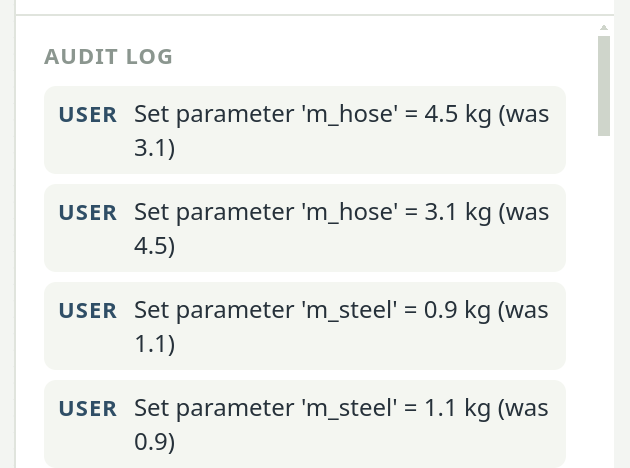
The Audit log sits in the right-hand panel of the Model page, below the inspector, and on the Parameters and Scenarios pages. It lists the changes, newest first.
- Who
- Each entry starts with its source: user for you, ai for the assistant, import for data that came in from a file.
- Assistant turns
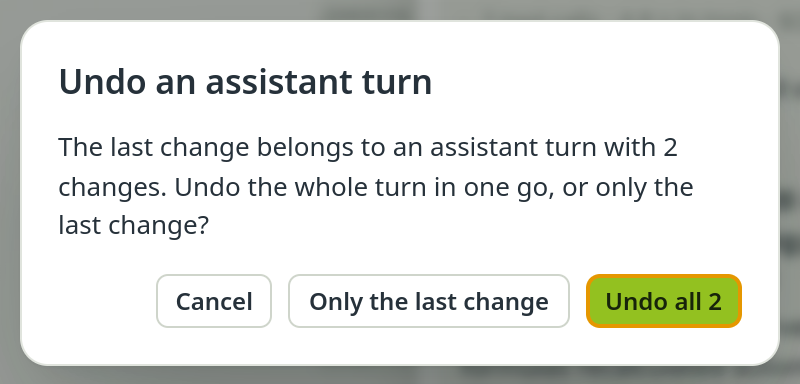
- When the assistant makes two or more changes in answer to one chat message, they are framed in a dashed box headed assistant turn · N changes. A single change stands on its own, like any other entry.
- Notes on an entry
- from … names the model a change came from (a copy or a duplicate). now … means the model has been renamed since. model no longer exists marks entries of a deleted model — the history outlives it. workspace-wide marks an action, such as merging tags, that reached into several models.
The log is kept with the workspace and survives a restart. Beside the canvas and on Parameters and Scenarios it shows the open model's changes. Actions that change no single model, such as creating a tag group or a tag, appear in every model's log, marked workspace-wide. Entries recorded before PrismLCA noted which model they belonged to are folded away under earlier history · not attributable to a model.
Run the health check#
The health check reads through the whole model and lists structural problems before you trust a result. It changes nothing. You run it through the assistant: ask in the chat, and it runs the check and explains what it found. The assistant also runs it on its own after it has built or changed a model.
Run the health check on this model and explain every finding. Fix the errors, but ask me before you change anything that might be deliberate.
Findings come in three levels, most serious first:
- Errors
- The model is wrong or will not calculate: an input that links to nothing, a process with no reference product or more than one, a production amount of zero, or a scenario run that was interrupted and may have left its values in the parameters.
- Warnings
- Suspicious, though sometimes legitimate. Most wrong results hide here.
- Info
- Worth knowing, not a defect: a treatment process with a negative reference amount, a parameter that nothing uses, few figures with a cited source.
The answer also lists which checks ran. That matters: a check that finds nothing stays silent, and only the list tells you it was there.
Typical findings and how to fix them#
| Finding | What it usually means | Fix |
|---|---|---|
| Two datasets deliver the same product | You replaced an input and forgot to delete the old one; both now count. | Delete the replaced input. If the split is deliberate, say so in the exchange comment. |
| Wrong sign on waste or a provider | Waste sent to treatment with a positive amount, or a normal input with a negative one — which quietly turns its burdens into credits. | Check the sign of the amount. |
| Amount does not match the input's unit | A parameter in kilograms feeds a dataset measured in cubic metres; the result is off by a density. | Use the right parameter or add the conversion to the formula. |
| Implausible transport distance | The tonne-kilometres imply an impossible distance — usually kilograms booked as tonnes, or a lot size booked per piece. | Recalculate: tonnes carried × kilometres. |
| Formula evaluates to zero | A dataset is in the model at an amount of nothing. | Check the formula, or note in the comment why zero is right. |
| Scenario has no effect | Its overrides reach no exchange, so it comes out identical to the baseline. | Use the parameter in a formula, or drop the scenario. |
| A process nothing uses | It is in the model and on the canvas, but not in the result — a stage that was never linked under the reference process, or a leftover. | Link it where it belongs, or delete it. Leave it if it is an alternative you compare on purpose. |
| A process reached twice | The reference process and another step both use it, so it counts twice. | Keep the real path and delete the other link. |
| A phase tag on the reference process | Every untagged process inherits it, so the phase breakdown is off. | Clear the tag — see Life-cycle phases and tags. |
| A step without a phase tag (info) | It counts under the phase of the process that uses it. | Tag it, unless it is a helper two steps share. |
| Mass appears from nowhere | A process puts out far more mass than goes in, with no natural source such as water or growth. | Check whether the reference amount and the inputs refer to the same quantity of product. |
| End-of-life shares do not add up to 1 | Parameters named eol_… sum to more or less than
100 %. | Give the remaining route its own parameter. |
| A share without a rule (info) | A parameter with no unit and a value between 0 and 1 — a share or a rate — has no allowed values, so a scenario or a sensitivity step can push it past 1. | If it is one, set Allowed to Range, 0 to 1 — see Parameters. |
Good habits#
- Check after every larger change, and always before you trust or report a result. It takes seconds.
- Read what the assistant did. Open its last turn in the audit log before you calculate, as you would look over a colleague's work.
- Undo in the session. If something looks wrong, undo before you close PrismLCA — after a restart, the undo history is gone.
- Export before big surgery. A
.prismexport of the model is a snapshot you can always go back to.
See also: Work with the assistant · Troubleshooting