HandbookAI assistant
Research and review
How the assistant finds figures the databases cannot give you, how it shows where each figure comes from, how it gets a critical second opinion on your model — and what you should still check yourself.
How it fills data gaps#
For a process, the assistant first searches your background databases (and My processes, if you switched it on for the chat). Many figures are not in any database: the mass of a part, an end-of-life split, a recycling rate, a material composition. For these it researches on the web — as long as Web search is on in the chat's + menu.
It has two ways to the web:
- A quick lookup
- For one or two facts, or a link you gave it (a safety data sheet, a standard, a statistics page), the assistant searches or opens the page itself, inside its reply. A row Web lookups by the provider then shows how many searches and page fetches ran.
- Web research
- For broader questions it sends a separate researcher (the tool Research a question on the web). The researcher works in isolation: it sees only the question and the context the assistant hands it, not your model or the conversation. Several questions run at the same time, each with its own search. A research call takes minutes; the status bar shows that it is still alive.
What a research answer contains#
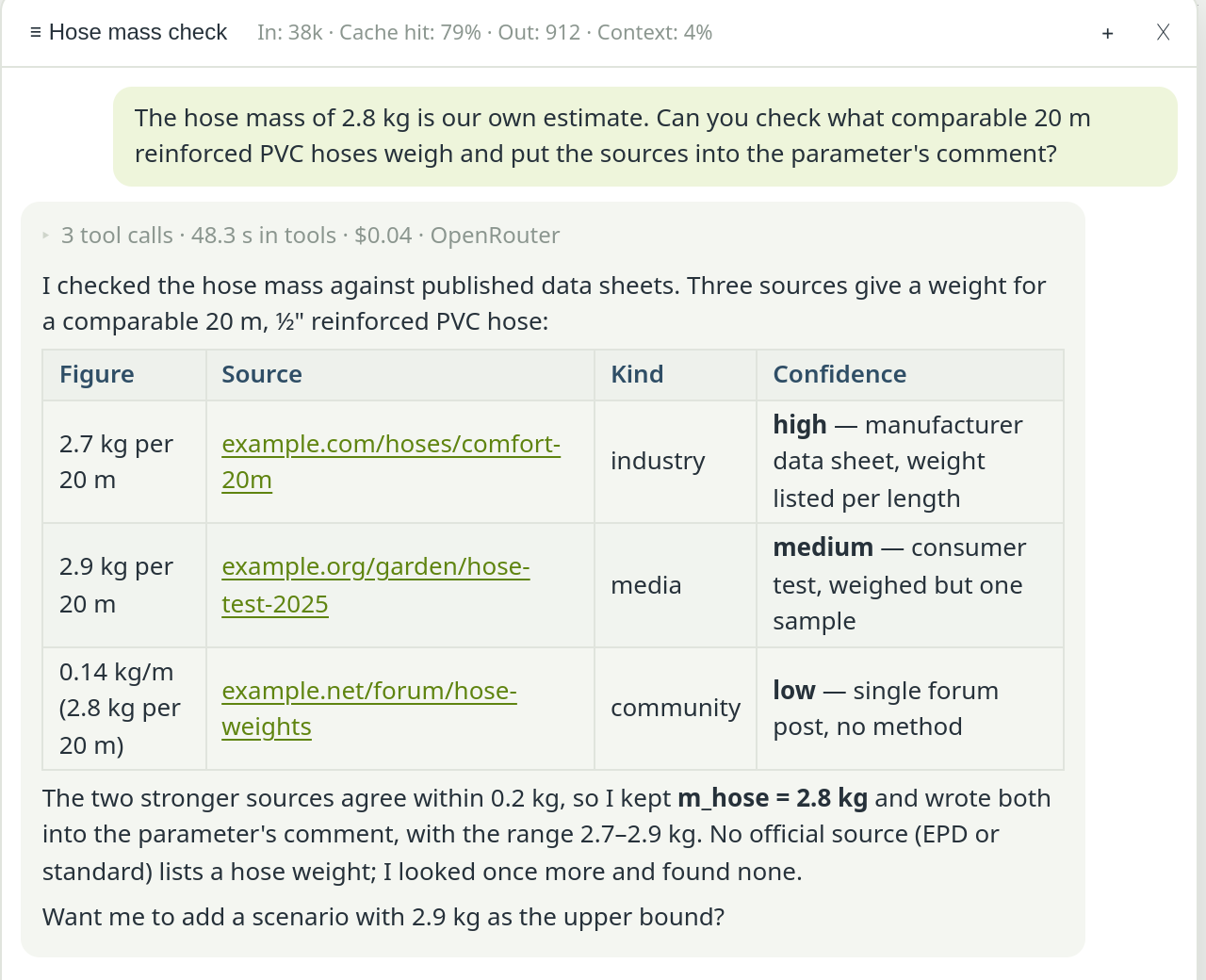
The researcher returns short findings. Each one carries:
- A source URL. Statements it cannot source are dropped, not estimated. A thin answer means “not findable”, not a confident guess.
- The excerpt it read on that page, so the figure can be traced to the sentence or table row it came from.
- The kind of source: official (authority, standard, EPD, peer-reviewed), industry, media or community (forums, Q&A, reviews). When unsure, the researcher picks the lower class.
- A confidence word — high, medium or low — with a short reason, such as “three independent sources agree” or “single forum post”. Words, not scores, on purpose: a number would suggest a precision nobody has.
If a question is answered only by media or community sources, the researcher makes one more short pass looking for an official or industry confirmation, and says whether it found one.
Where the sources end up#
A figure is only useful if you can still see its origin next month. The assistant names its sources in the answer and keeps them with the figure: a researched value usually becomes a parameter whose description cites the page, or an exchange whose comment does. If a figure arrives without one, ask for it.

In addition, every research question and its sourced findings are recorded with the model. The full report lists them in its bibliography under Sources researched during modelling — not only the links that happen to sit in a comment. See The full study report.
Research a bill of materials#
When you describe a product but have no composition data, the assistant can research a bill of materials: the components, their materials and masses, each with sources (the tool Research a bill of materials).
- Give the total mass if you know it. The parts are checked against it, and a gap is reported instead of being quietly assigned to some part.
- Give every specific you know — size, capacity, market, standard, year. The researcher sees nothing but what the assistant passes on, so a vague brief gets a generic product.
- Ranges are kept. When sources give a range, the entry carries it beside the chosen value, so you can build a scenario on it.
Later, the model health check compares the researched masses with what the model actually books, and names a component that made it into the list but into no process.
Research the bill of materials of a 20 m garden hose reel set (PVC hose, brass fittings, polypropylene reel, total about 4.5 kg). Check the parts against the total and show me what is still missing.
Web search and its cost#
Web access is controlled in two places:
- Per chat: the Web search switch in the + menu, on for every new chat. Turn it off when the assistant should work only from your data and the databases.
- For the whole app: Offer web search in the chat under SettingsAIChat. Off, the switch disappears and neither the assistant nor its researchers can reach the web.
The search runs on your provider's side, so the provider sees the queries the assistant writes from your work.
The critical review#
A model you built is the hardest one to see clearly — and the same is true for the assistant. The tool Review the model critically gets a second opinion from a separate reviewer, by default a different model from the one that built the study (see the review model in Models, effort and limits).
How it starts: ask for it. The assistant is also told to consider a review before it reports a result or a comparison, so it may suggest or run one itself.
Run a critical review of this model with EF 3.1 climate change, then go through the findings with me: fix what you can, and tell me which ones are limitations I have to accept.
What happens: the assistant collects the evidence — the health check, the biggest contributors, the goal and scope on record, the background datasets — and hands it to the reviewer. The reviewer challenges it: do the stated boundaries match what is modelled, are the proxy datasets plausible for their region and year, does the impact method fit the goal, do treatment processes have the right sign, does one hotspot decide the whole result? Every finding has to quote the figure behind it.
What it leaves behind: the review changes nothing in the model. The assistant acts on the findings and records for each one whether it was fixed, rejected (with a reason) or is still open. Each review is kept with the model and stamped against the model state, so the report's Limitations chapter can state that a review ran, whether the model changed afterwards, and which findings are open.
End-of-life statistics from Eurostat#
With Eurostat EoL on, the assistant can read official Eurostat waste tables for an end-of-life scenario: the treatment mix of a country (landfill, incineration, energy recovery, recycling), treatment by waste category, packaging recycling rates by material, and municipal waste — for one EU country, the EU, or all reporting countries at once. It is free and needs no key; each table is cached for a day.
- Provisional, estimated or imputed figures come back flagged, and the assistant is told to warn you before using them. Confidential cells stay unknown, never zero.
- Recycling figures count what enters sorting, not the secondary material produced; losses still belong in the recycling datasets.
- Switch it off per chat in the + menu, or for the whole app with Offer Eurostat waste statistics to the assistant under SettingsAIChat.
Use Eurostat to set up the end-of-life split for the PVC hose in Germany as parameters that sum to 1, and tell me which figures are provisional.
Transport distances#
If you have entered a key under SettingsTransport distances, the + menu shows a Distances switch. The assistant can then look up road, sea, air and rail kilometres between places, several legs in one call. Rail distances are a great-circle estimate and say nothing about whether a railway exists — the assistant is told to repeat that caveat. Setup and limits are on Transport distances.
What to check yourself#
Research and review make the assistant's work traceable; they do not make it correct. Before you rely on a result:
- Open the sources of the figures that carry the result. Is the number really on that page, for that product and that unit?
- Look at the confidence words. A key figure that rests on a single low-confidence or community source deserves your own search or a scenario.
- Check the masses against the product you know, and read the health check.
- Read the open review findings and decide which you accept as limitations.
- Click the main background datasets. Right material, right region, right market?
See also: Good prompts · Scenarios · Review and approve a report