HandbookExternal agents (MCP)
What MCP is for
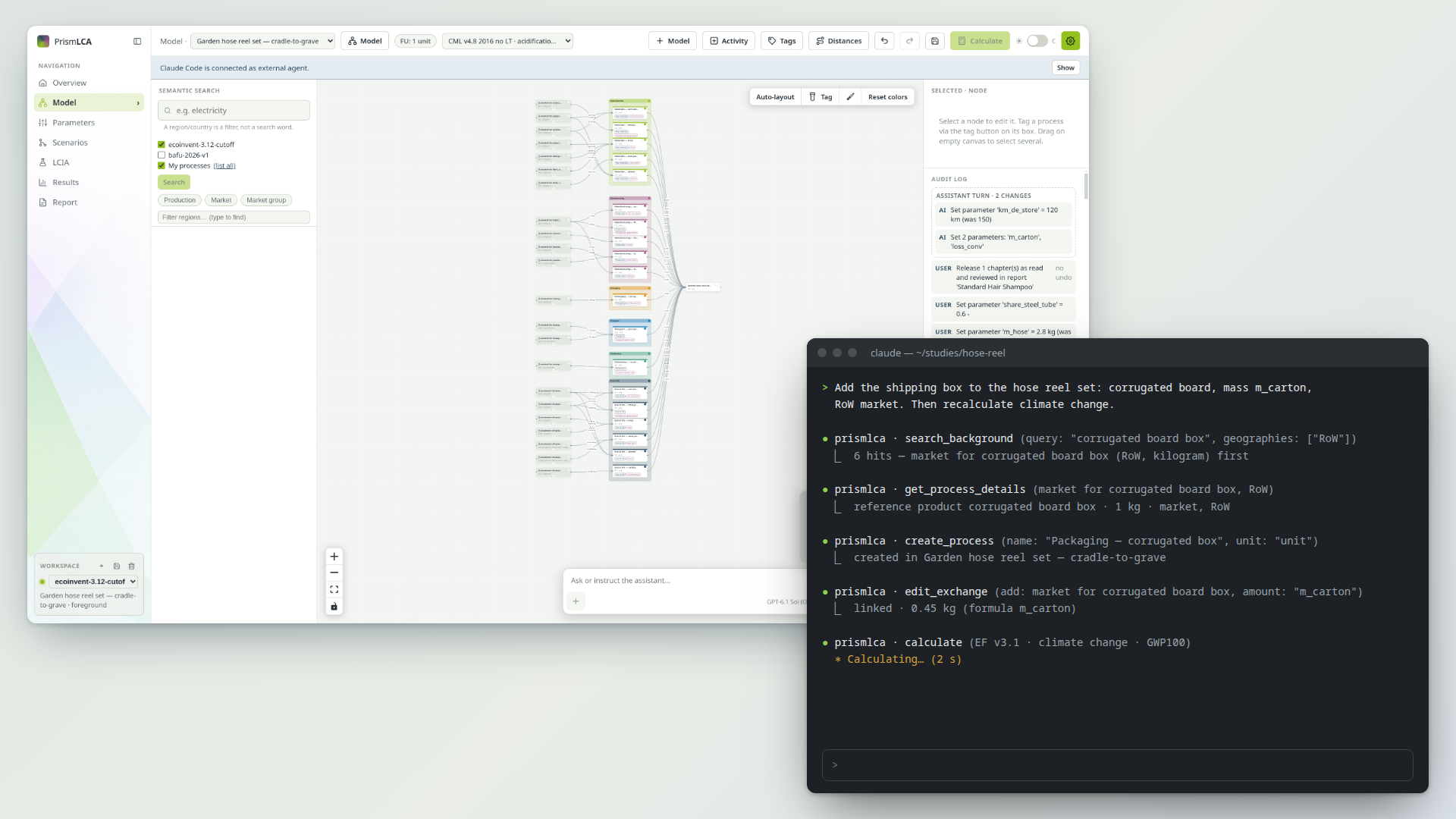
PrismLCA can be driven by an AI agent you already use — Claude Code, Codex or Claude Desktop — instead of, or next to, its built-in assistant. This page explains what that means, when it is worth it, and what such an agent can and cannot do.
MCP in two sentences#
MCP, the Model Context Protocol, is an open standard that lets an AI client call the tools of another program on your computer. When you switch it on, PrismLCA offers its tools — search the background data, build processes, calculate, explain results — to the AI clients you connect, and those clients can then work on your models the way the built-in assistant does.
You do not need to program anything. You switch the server on in PrismLCA, let PrismLCA write one entry into the client's configuration, and talk to the client as usual. Connect your agent walks you through it.
Why you might want it#
- You already pay for an agent. If you use Claude Code, Codex or Claude Desktop with your own subscription or API account, it can do LCA work in PrismLCA on that account. You do not need a separate key for PrismLCA's assistant.
- Long tasks. Coding agents are built to work through long jobs step by step, keep their own task list and pick up where they stopped. Building a model with forty processes from a bill of materials is that kind of job.
- Your own files. An agent in a terminal or a desktop client can read the spreadsheets, PDFs and notes in a folder you point it at, and bring the figures from there into the model.
- Scripting and repeatable runs. If you script your agent, the same prompt can build or check models in the same way every time.
If none of this applies to you, the built-in assistant is the simpler choice: it is already in the window, it knows the page you are on, and it can draft your report.
Built-in assistant and external agent compared#
| Built-in assistant | External agent (MCP) | |
|---|---|---|
| Where you talk to it | The chat at the bottom right of the PrismLCA window | In the client: a terminal, the Codex app, Claude Desktop |
| Which AI model answers | The one you pick under SettingsAIModels | The client's own model |
| Who bills you | Your provider for PrismLCA (OpenRouter or OpenAI) | The client's provider, under your account with it |
| Tools | The same tools on your models, with a few exceptions listed below | |
| Your control | Every change in the audit log and undoable; nothing irreversible without your consent in the PrismLCA window | |
| Report chapters, web research helpers, plan card | Yes | No — see below |
What an external agent can do#
It works through PrismLCA's own tools, the same catalogue the built-in assistant uses. In practice that means it can:
- list your models, open one and read its goal, scope and functional unit;
- search the background databases and your library My processes (see the glossary), and read a dataset before it links it;
- create and edit processes, exchanges, parameters, scenarios and tags on the canvas;
- localize a background or library dataset — make it an editable process of your model, optionally with its direct suppliers;
- calculate, compare scenarios, explain where a result comes from and set up the Results page;
- run the model health check, look at the canvas and at what you have selected on it;
- load PrismLCA's skills — the same modelling guides the built-in assistant reads;
- ask you a question, which appears as a card in the PrismLCA window.
Transport distances and the Eurostat waste statistics are offered to it only when they are available to the built-in assistant too: distances need your own key under SettingsTransport distances, and Eurostat must be switched on under SettingsAIChat. A tool you switch off under SettingsAITools is hidden from external agents as well.
What it cannot do#
- No code on your computer through PrismLCA. PrismLCA offers no tool that runs code or shell commands. What the client itself may do on your computer is a matter between you and the client.
- No helper agents. The built-in assistant's web-research and review helpers are separate AI calls of their own. For an external agent they are left out: the client is the model, and a second model inside it would double cost and responsibility. If your client can search the web, it does so with its own tools.
- No plan card. The client keeps its own task list; a second one in PrismLCA would be read by nobody.
- No report writing and no imports. Report chapters are written by PrismLCA's report writer, and background databases are imported from the Overview — both stay in the PrismLCA window.
- No workspace switch. The agent works in the workspace that is open in PrismLCA. It can open another model of that workspace; changing the workspace is yours, in the window. Unlike the built-in assistant, which stays in the model of its chat, an external agent may read and change any model of the workspace, create and delete models.
- Nothing irreversible on its own. Deleting a model, a custom impact method or a method family always waits for your Allow in the PrismLCA window. Stay in control explains the cards.
Privacy#
The MCP server is off until you switch it on, and while it is off nothing listens. When it is on, it listens only
on 127.0.0.1 — a connection that cannot be reached from outside your computer — and only clients that hold
its key can use it.
PrismLCA itself sends nothing anywhere for MCP. But the client usually passes what it reads — model contents, search results from your background databases, calculation results, study metadata — on to its own AI provider. That is governed by the client and by your contract with its provider, not by PrismLCA. If your background data is licensed, check that its licence allows this, as you would for the built-in assistant. The full list of connections is in What leaves your computer.