HandbookAI assistant
Set up the assistant
The AI assistant is optional. To switch it on you need an API key from an AI provider. This page walks you through choosing a provider, getting a key, entering it, setting a spending limit and sending a first message.
What you need#
PrismLCA does not run an AI of its own and has no server in between. It talks directly to a provider you choose, with your own API key. An API key is a long secret string that identifies your account at the provider.
- An account at OpenRouter or OpenAI, with a little credit on it.
- An API key from that account Needs an API key
- A spending limit at the provider. This is the one brake that holds whatever happens inside PrismLCA.
Your key means your contract: you are the provider's customer, the provider bills you for what the assistant uses, and its own terms and privacy policy apply. PrismLCA shows the running cost, but the bill is yours.
Choose a provider#
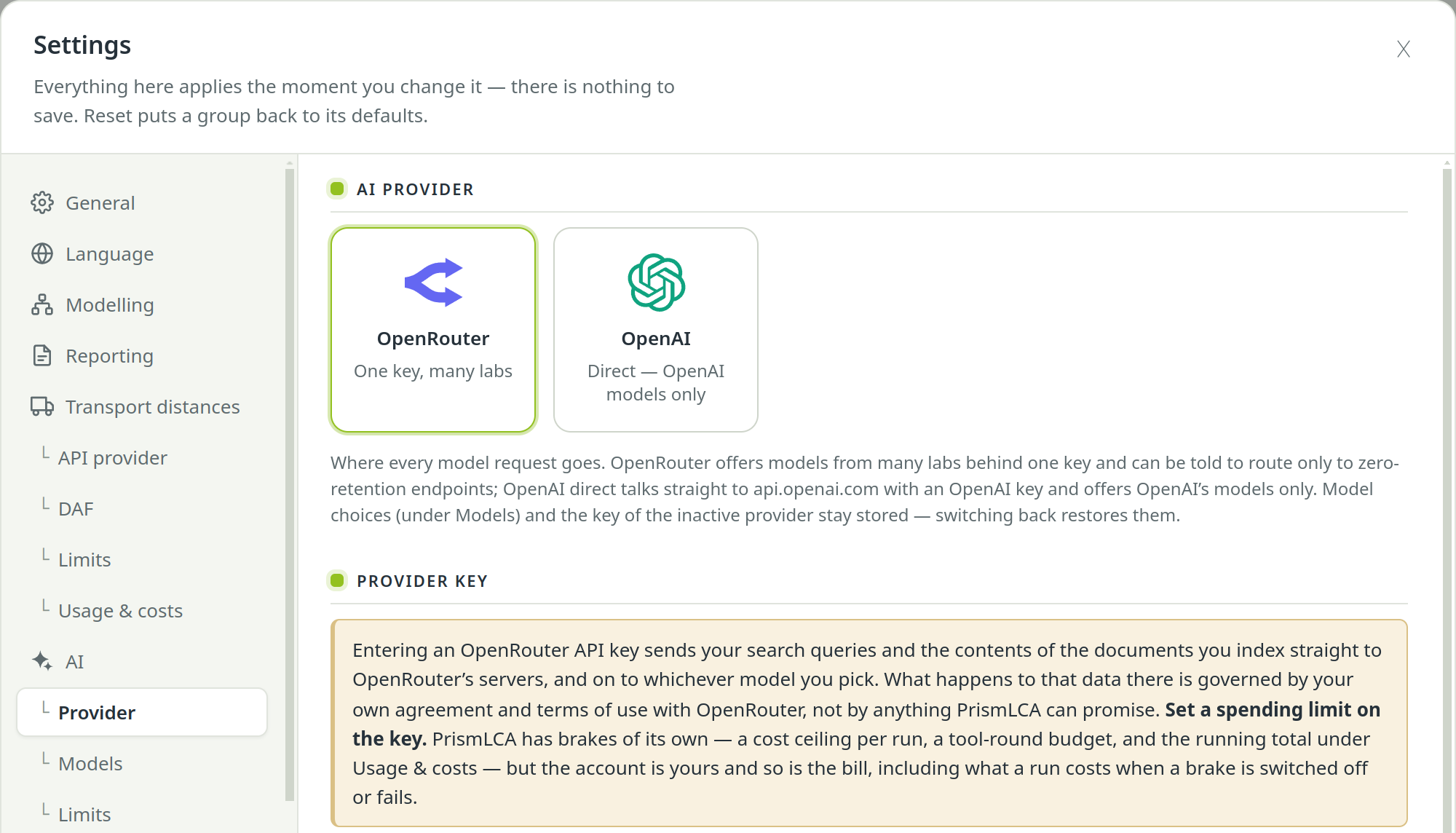
Under SettingsAIProvider you pick one of two cards:
| Card | What it means | Choose it if |
|---|---|---|
| OpenRouter — “One key, many labs” | A pay-as-you-go service (openrouter.ai) that forwards your requests to models from many labs — Claude, GPT, Gemini and others — behind one key. PrismLCA can tell it to use only providers that keep nothing. | You want to compare models, or you want the strictest privacy routing. This is the default. |
| OpenAI — “Direct — OpenAI models only” | PrismLCA talks straight to api.openai.com with an OpenAI key. Only OpenAI's models are offered. | Your organisation already has an OpenAI contract, or you only want one company involved. |
You can switch at any time. The key and the model choices of the provider you are not using stay stored, so switching back restores them.
Get a key#
The steps for OpenRouter and OpenAI are similar. Provider websites change; if a menu name differs, look for “Keys” and “Credits” or “Billing”.
Create an account#
Sign up at openrouter.ai.
Add credit#
Under Credits, buy a small amount of credit. A few dollars are enough to try the assistant.
Create a key with a credit limit#
Under Keys, create a new key. While you create it, set a credit limit on the key: the key stops working once it has spent that amount. Copy the key — it starts with
sk-or-v1-.
Create an account#
Sign up at platform.openai.com. This is the developer platform, separate from a ChatGPT subscription.
Add prepaid credit#
In the billing settings, buy prepaid credit. Leave automatic recharge off: then your balance is a hard ceiling, because requests stop when it is used up.
Create a key#
Under API keys, create a new secret key and copy it. It starts with
sk-.
Enter the key#
Open the provider page#
Click the gear in the top bar and open SettingsAIProvider. Check that the card of your provider is selected.
Paste the key#
Paste it into OpenRouter API key (or OpenAI API key) under Provider key and press Enter. PrismLCA confirms with Stored. There is no Save button and no restart.
Check where it is kept#
The field now shows a mask such as
sk-or-v…1f4c, never the key itself. The hint below says where it lives: encrypted by Windows for your account only, or in your desktop keyring on Linux. To change the key, type a new one — it replaces the old one. Remove the key deletes it.
Privacy options#
With a key entered, the assistant sends your messages, the conversation so far, the parts of your model and results it works on, tool results (which can include names and values from your background databases), your attachments and the skills it uses to the provider. The full list is in What leaves your computer.
The privacy switch sits on SettingsAILimits, under Privacy:
- Only use providers that keep nothing (zero data retention)
- On by default. It asks OpenRouter for two things: only providers that do not collect your data (which also stops them training on it), and only endpoints that retain nothing at all. Off widens the pool; some models are only served by providers that log.
- Except Anthropic (Claude) / Except OpenAI (GPT) / Except Google (Gemini)
- Ticked by default. A few models have no zero-retention endpoint anywhere — among them every Gemini model, because Google serves them only from its own endpoints (Vertex AI and Google AI Studio), which keep prompts for a limited time to detect abuse. For these three vendors the no-collection rule still applies, but not the zero-retention rule, so their models run under the vendor's own retention terms. That includes the current default chat model. Untick one to make that vendor strict too; if no endpoint is left, the model answers “no endpoints” and PrismLCA names the setting responsible.
Under the OpenAI provider the switch has no effect: PrismLCA sends requests without server-side storage, and stricter retention is something you agree with OpenAI at account level. Voice transcription always carries the no-collection rule. Web search runs on the provider's side and sits outside these settings. All of these are requests to the provider, not guarantees from PrismLCA.
Limit what a run may spend#
PrismLCA has its own brakes on top of the provider's limit. The main one is Cost limit per run ($) on SettingsAILimits: a run stops as soon as it has spent this much and says so in the chat. You can then continue with one more click. 0 switches the limit off.
The other limits — tool rounds, reply length, research width — are explained in Models, effort and limits.
Test it with a first message#
Open a model#
The chat works inside a model. Open one from the Overview, or create an empty one with + Model. Without an open model the input reads “Open a model to chat”.
Ask something small#
Click into the chat at the bottom right, type a question and press Enter.
What can you do in PrismLCA, and what can only I do?
Check the cost#
The answer arrives within seconds. The chat header now counts the tokens the conversation used (In and Out); when the assistant used several tools, a line above its answer also shows what the turn cost. Your first spend appears under SettingsAIUsage & costs.
If the chat does not answer, check that a key is stored, that the provider account has credit, and — for a “no endpoints” error — the privacy switch above. More fixes are in Troubleshooting.
See also: Tutorial: build it with the assistant