HandbookData
Import from other software
A supplier sends a SimaPro export, a partner an openLCA package, a national database an ILCD archive. This page shows how to bring such data into your library, check how each flow was matched, and decide what PrismLCA must not decide for you.
What you can import#
| Format | What to pick |
|---|---|
| SimaPro CSV | The export file (.csv or .txt). |
| openLCA JSON-LD | The package (.json, .zip) or its folder. |
| EcoSpold 1 and EcoSpold 2 | One file (.xml, .spold) or a folder of them. |
| ILCD | The package (.zip) or its folder. GaBi data usually comes in this format. |
You do not choose the format: PrismLCA reads what the file says it is and tells you what it found. Everything you
import lands in your library, My processes, where every model in the workspace can use it — see
Your library: My processes. To import a whole PrismLCA model instead, use a
.prism file — see Share and export models.
Why imports need a review#
Reading the file is the easy part. The work is matching. A foreign dataset names its elementary flows and its inputs in its own words, and each of them has to land on something your workspace knows: an elementary flow in your flow list, or a process in your background database or library. A flow that lands on the wrong substance gives a number that looks finished. A flow that lands nowhere is counted as missing.
PrismLCA matches first by rule: an identifier that hits, a CAS number, an exact name in the right compartment, the synonyms ecoinvent keeps for its flows. It converts units where the conversion is exact. What the rules leave open, an AI model can propose, and you decide.
Import step by step#
The wizard Import from other software has three steps: Pick a file, Review the matches, Done.
Open the wizard#
On the Overview, choose Processes (the button with the upload icon) in the Models panel.
Pick a file#
Choose Choose a file… or, for a package that is a folder, Choose a folder…. PrismLCA looks at it and names the format it found, for example the number of files.
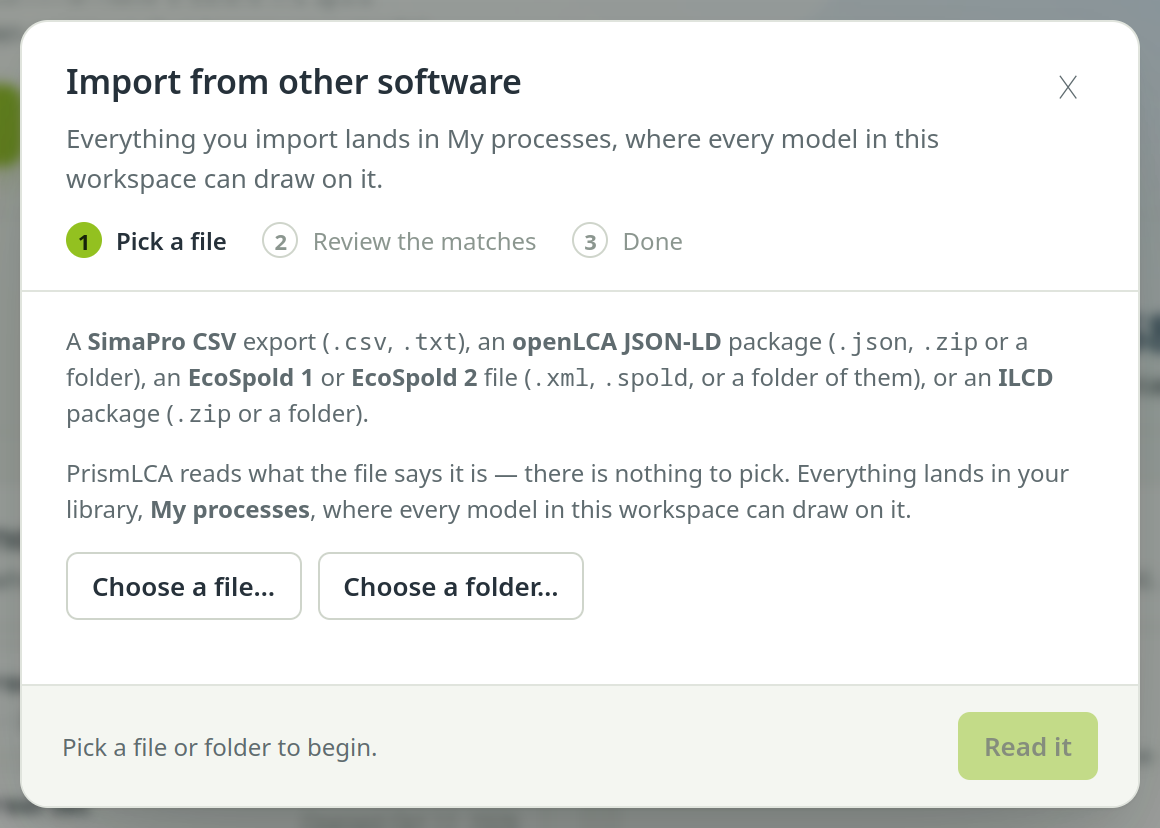
The first step: one file or folder, whatever its format. Read it#
Choose Read it. PrismLCA reads the datasets and matches what it can by rule. On a large package this can take minutes; a progress bar shows how far it is. The stop button next to it stops the reading — nothing has been written at that point.
Review the matches#
The review table lists every flow of every dataset. Work through it as described below. Closing the window does not throw your review away: open the wizard again and you are back where you were. Only Discard ends the import without writing anything.
Name it and add it#
Give the import a name in Name for this import (for example “supplier data, spring delivery”). It is how you find the import again under OverviewBackgroundYour library and how you remove it. Left empty, the file's name is used. Then choose Add to My processes.
The review step#
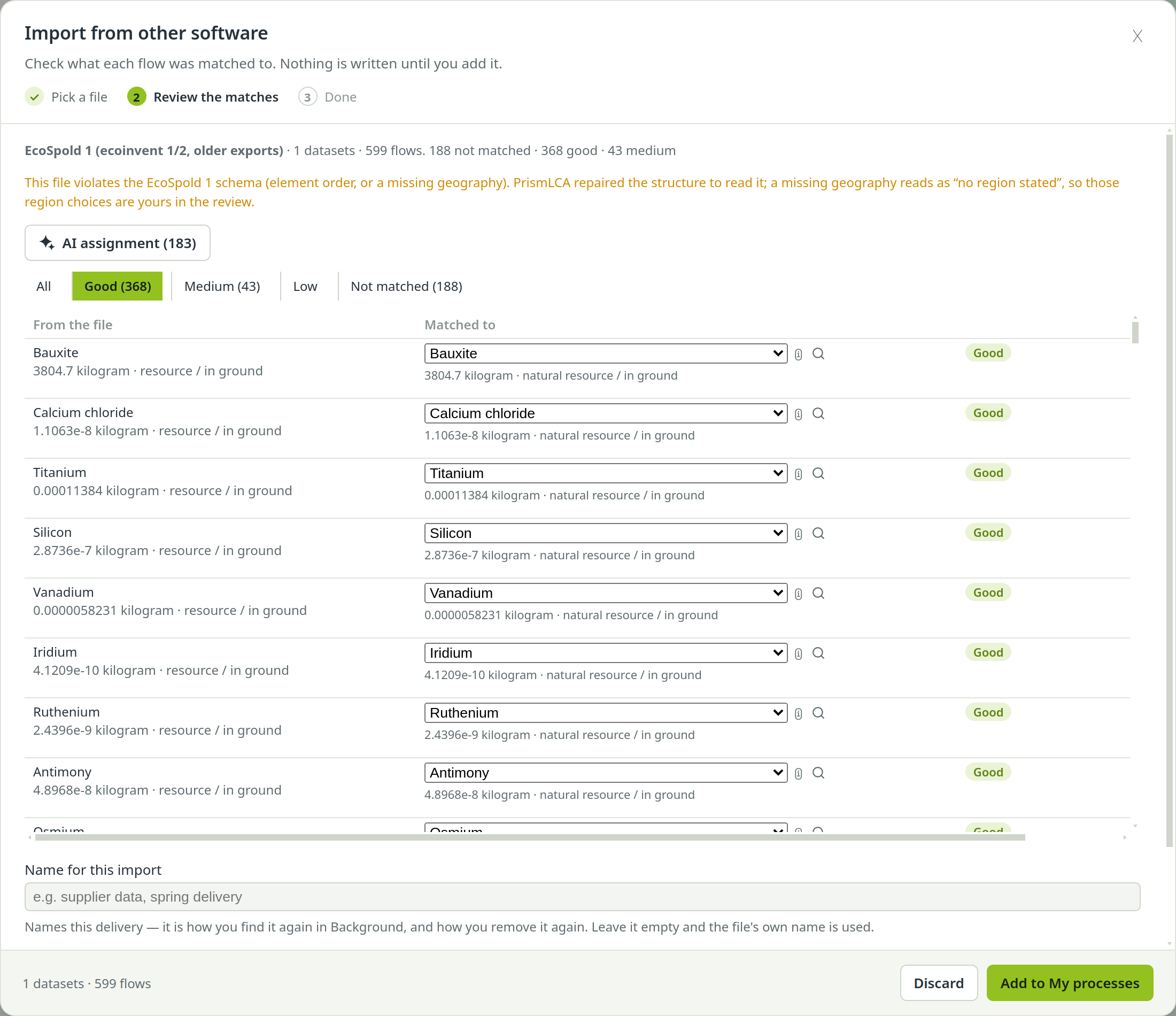
Above the table, a line says what was found: the format, the number of datasets and flows, and how many rows fall into each confidence band. Each row of the table has three parts.
- From the file
- The line as the file wrote it: name, amount, unit and compartment. Chips flag rows that need a decision (see below).
- Matched to
- What it became: a dropdown with the shortlist the rules found, the region of a matched process, and below it the amount that will be written, in the target's unit, with the conversion factor. A ⚠ marks a conversion that rests on an assumption. Hover the ⓘ to read why the match was made. The magnifier searches all elementary flows or all processes, not only the shortlist. Choose — not matched — to clear a match.
- Band
- How sure the match is: Good for what a rule established, Medium and Low for what the model proposed or you chose, and Not matched.
Filter the table with the buttons All, Good, Medium, Low and Not matched. Nobody reads three hundred rows end to end, but everybody can read the twelve uncertain ones.
Flags to look at#
- Waste → treatment
- A waste the process gives off. It is booked as a link to the treatment it is matched to, with the sign that treatment needs, so the treatment's burden is added. Treatment datasets are listed first in its shortlist.
- Negative input — check whether this is waste to treatment
- The file gives an input a negative amount but does not call it a waste. It is booked as written. Check what the source meant: a credit, or waste sent to treatment. Then match it accordingly.
- Co-product — not booked
- A product the process gives off besides its reference product. By default it is not booked, and the dataset carries the whole burden until you allocate it. Tick Book the … co-products as substitution below the table to credit each matched co-product as avoided burden instead (system expansion). This changes results. Datasets with several products and allocation factors (from SimaPro or openLCA) are split into one dataset per product on reading.
Regions#
For an input matched to a process, the region decides which electricity mix and which transport distances your study ends up with. PrismLCA takes the region the file names. When the file names none and the dataset exists in several regions, the row shows Select region… and nothing is preselected: this is your decision. Add to My processes stays disabled until every such row has a region. The footer counts how many are still open.
When the package brings its own supplier for an input, the input is linked to that dataset and the shortlist marks it from this package. You can still pick a background process instead.
Units that need a figure from you#
Sometimes the target measures a different quantity — kilograms of water in the file, cubic metres in the flow list —
and the file states nothing that bridges the two. The row then asks for the figure: 1 kg = … m³, because ….
Fill in both fields, for example 0.001 because “density of liquid water, 1 kg/L”. It is applied as soon as
both are filled, written into the dataset's notes, and the row stays in the Low band, because the number came
from you.
Unmatched flows#
If flows remain unmatched, a checkbox below the table reads Keep the … unmatched flows with their datasets, counted and reported. Leave it ticked. Kept flows stay visible: the health check counts them, and the dataset editor says how many flows are not linked. Untick it and they are dropped — the study will then look better than it is. A waste is always kept.
Let the AI assign the rest#
Needs an API key If the rules left rows open, the review offers AI assignment (…) with the number of rows. A language model then looks at each open row and chooses from the shortlist the rules already found. It may always answer “none of these”: a row it cannot match honestly stays open.
- It uses the provider key you set up for the assistant — see Set up the assistant.
- The model is set under SettingsAIModelsMaterial assignment model. Currently the default is GPT-6 Luna, a cheap model, which fits bulk work with one short answer per flow.
- The run counts as one assistant run, so the Cost limit per run ($) under SettingsAILimits applies. If it stops early, the remaining rows stay open and another run picks up where it stopped.
- Stop next to the progress bar ends the run; answers already given are kept.
Rows the model matched land in Medium or Low. They are proposals, not decisions: review them like any other uncertain row.
After the import#
The Done step says how many processes were imported into My processes, how many unmatched flows were kept and whether co-products were left unbooked. On the Model page, tick My processes under the search field, or choose its (list all), to find the new datasets. If your library has no search index yet, the wizard says so: build it once with the Index button next to My processes in the search panel.
To take an import back out, open OverviewBackgroundYour library and choose Remove… on it. If an updated file arrives later, import it again: datasets with the same identifier and name replace the old ones instead of doubling them.
Good practice for checking matches#
- Start with the bands. Filter to Not matched and Low first, then Medium. Glance through Good once to see what the rules did.
- Check the compartment. CO2 to air and CO2 to water are different flows with different factors. The compartment is shown under the matched name.
- Read the arithmetic. Compare the amount on the left with the amount on the right. A factor of 1 000 where you expected 1 is the classic unit error. Every ⚠ deserves a look.
- Choose regions deliberately. The region of an electricity or transport input can move a result more than the material itself.
- Prefer “not matched” to a guess. An unmatched flow is reported; a wrongly matched one hides.
- Look at the datasets that carry the result. After the import, open the few imported datasets that matter most for your study in the editor and check their main inputs.
See also: Find the right dataset · Check, undo and the audit log