HandbookResults
Impact methods
This page explains what an impact method is, which methods come with your background database, and how to choose one. It also shows the LCIA page, where you can look inside a method and, in the rare case a study needs it, build your own.
Methods, indicators and families in plain words#
A model tells you what a product emits and consumes: kilograms of carbon dioxide, grams of methane, litres of water, hundreds of substances in all. An impact method (also called an LCIA method, for life cycle impact assessment) turns that long list into a few numbers you can compare.
- Characterisation factor
- How much one unit of an elementary flow counts towards an impact. For climate change, 1 kg of carbon dioxide counts as 1 kg CO2-eq; 1 kg of fossil methane counts as roughly thirty times as much.
- Indicator
- One impact category with its unit and its table of factors — for example climate change in kg CO2-eq, or acidification in mol H+-eq. One calculation gives one score per indicator.
- Method family
- A set of indicators published together, such as the Environmental Footprint (EF), ReCiPe 2016, CML-IA, IPCC 2021 or EN 15804+A2. In PrismLCA an indicator's full name reads family · category · indicator.
All terms are also in the glossary.
Which methods come with which database#
Methods belong to the workspace, not to a model: every model in a workspace can use every method in it.
| Background database | Impact methods you get |
|---|---|
| ecoinvent | The families of the LCIA Implementation workbook you choose during the import, from the same ecoinvent release. Without the workbook the inventory is imported, but there are no methods and nothing can be calculated. |
| BAFU, in a workspace without ecoinvent | The ecoinvent 3.9 method implementation that ships with Brightway, installed automatically before the BAFU import. |
| BAFU next to ecoinvent | The ecoinvent methods already in the workspace. |
To add methods later — for example the workbook you skipped during an ecoinvent import — open OverviewBackground and choose Add impact methods… under Impact methods. It reads an LCIA Implementation workbook and adds its methods, or replaces methods of the same name. The section also shows how many methods the workspace has and how many of them are your own. See Background databases.
Choose a method#
Wherever you pick an indicator — the method list in the model toolbar, the Results page, the LCIA page — a ★ marks the standard reporting indicator of its category. Indicators without a star are specialist variants: climate change split into fossil, biogenic or land-use parts, variants without long-term emissions, other time horizons such as GWP20 or GWP500, and indicators marked obsolete. They have their uses, but a biogenic-only climate figure can be far off the total, so take the ★ indicator unless you know why you need a variant.
Which family to choose depends on what the study is for, not on the software. Some common reasons:
- A carbon footprint — the climate change indicator of IPCC 2021 or EF, GWP100.
- An environmental product declaration for construction products — EN 15804+A2.
- A study along the EU Product Environmental Footprint — EF.
- A broad screening — a family with many categories, such as EF or ReCiPe 2016, so you do not miss a trade-off.
When you pick a family on the Results or LCIA page, a short description and a Method reference ↗ link (where available) appear beside the indicators.
The LCIA page#
Open LCIA in the sidebar. Two tabs in the toolbar divide the page: Compare factors and Manage methods. A panel on the right, What is this page for?, sums up both.
Compare factors#
Use this tab when two methods give different results for the same model and you want to know which flows are behind the gap.
Pick indicators#
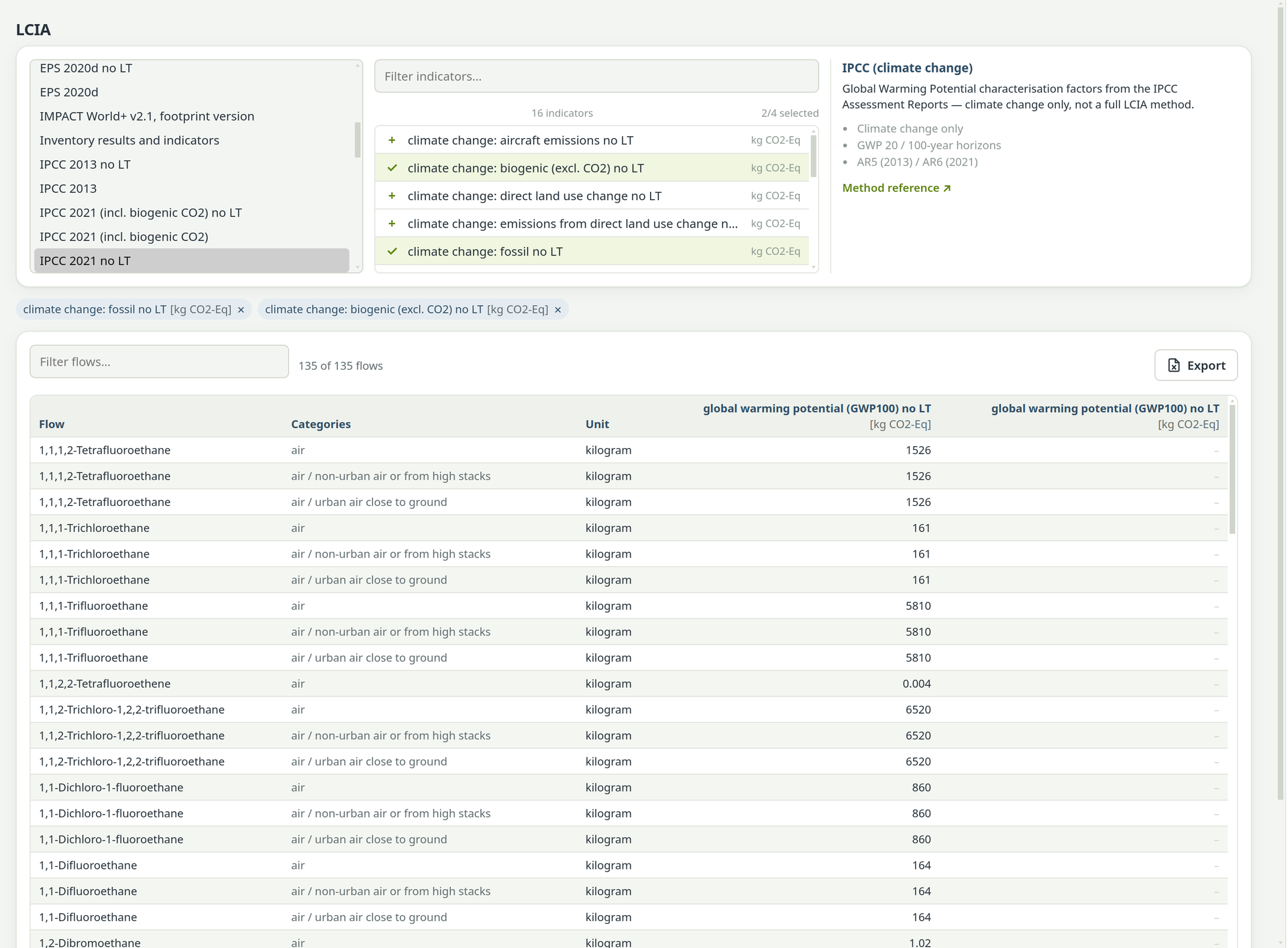
Choose a family on the left, narrow the list with Filter indicators… if needed, and click up to three indicators. The counter shows how many are selected, for example 2/3 selected. The chosen indicators appear as chips; × removes one.
Read the table#
It lists every elementary flow that at least one of the indicators characterises, with columns Flow, Categories (the compartment, such as air / urban), Unit and one column of factors per indicator. Factors that are the same within a row are tinted green, so you see at a glance where the indicators agree and where they part. Click a column header to sort by it — text from A to Z, factors from the smallest — click again to reverse the order and a third time to return to the original order.
Filter and export#
Type into Filter flows… to find a substance or a compartment; the counter shows how many flows match. Export saves the table as an Excel file — the flows the filter shows, in the order shown.
Manage methods#
The shipped methods are read-only: you cannot change them, and you cannot add indicators to a shipped family. This keeps your results comparable with other studies on the same methods. Instead you build your own methods, which are real methods: they appear on the Results page, in the contribution tree and in reports like the shipped ones, for every model in the workspace.
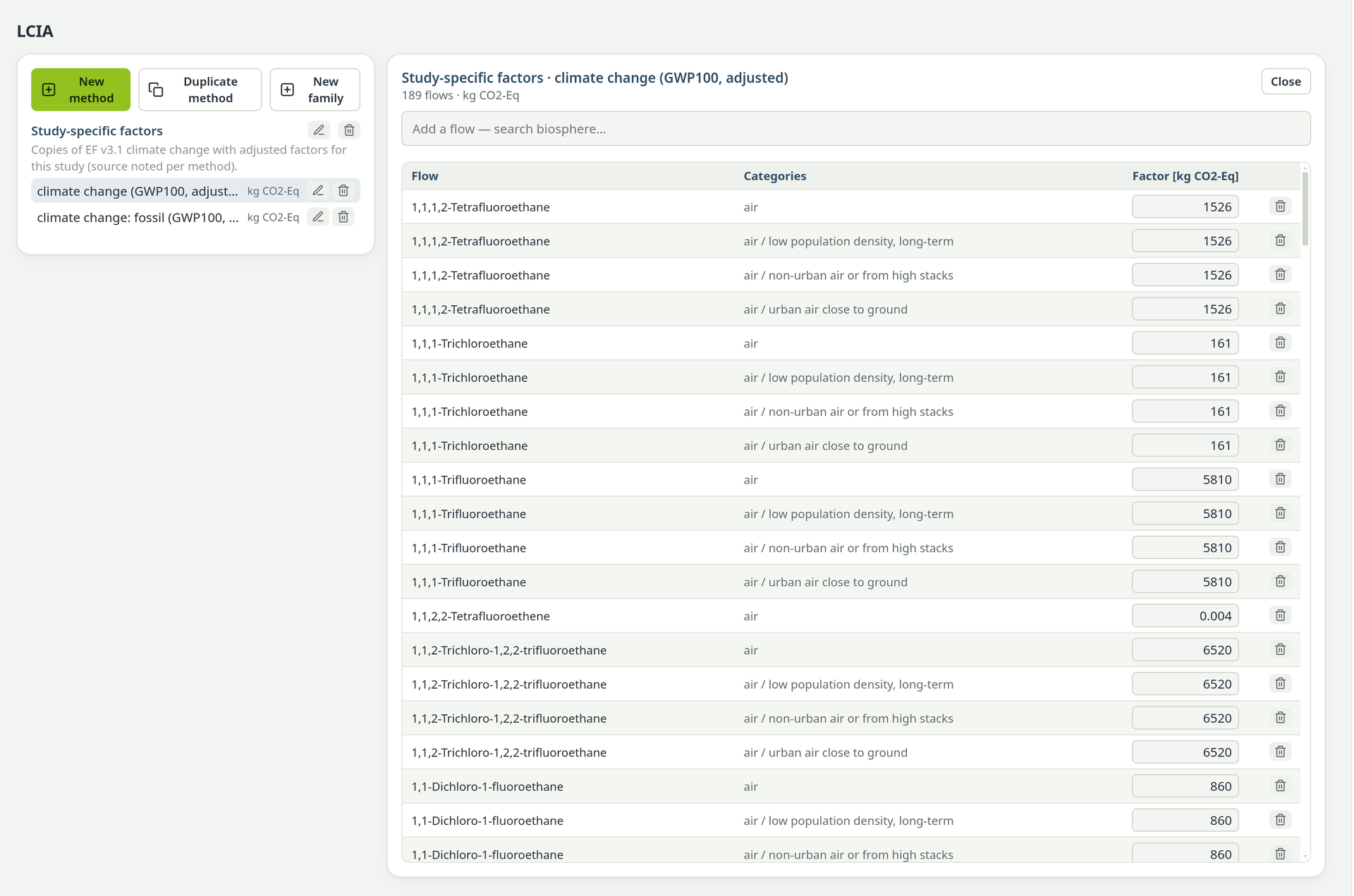
Three buttons at the top of the list start a method or a family:
- Duplicate method
- The usual start. In Duplicate indicators, choose a family under From family, tick one or more indicators, choose Into family (your own — existing or new) and, if you like, a new name for each copy. Confirm with Duplicate. A single copy opens straight in the editor.
- New method
- An empty indicator: Family (your own — existing or new), Indicator name, Unit (e.g. kg CO2-eq) and an optional family description. You add every factor yourself.
- New family
- A family of your own with Family name and Short description (optional).
Your families appear in the list with their methods. The pencil beside a family edits its name and description, the bin deletes the family with all its methods. Beside each method, the pencil renames it and the bin deletes it.
Edit the factors#
Open the method#
Click a method in the list. The editor on the right shows its name, the number of flows and the unit; Close puts it away.
Change a factor#
Click into the Factor cell, type the new value and press Enter or leave the cell. If the text is not a number, the old factor comes back.
Add or remove flows#
Type into Add a flow — search biosphere… and click a hit; the flow joins the table with a factor of 0, ready for your value. Flows already in the method are ticked. The bin at the end of a row removes that flow.
A custom method is a copy: later updates to the shipped method do not reach it. Write in the family description where its factors come from, so that you and your readers can trace them later.
When the assistant works on methods#
The assistant can list methods, read their factors, and create and edit your own methods. Creating a method or duplicating one runs without asking, because it only adds something. Anything that changes or removes an existing custom method — a factor, a flow, a name, a family, a deletion — cannot be undone, so the assistant first asks with a card in the chat: Allow the assistant to run …? with Allow and Decline. This depends on the setting Ask me before the assistant does something that cannot be undone under SettingsAILimits, which is on by default. See Work with the assistant.
Duplicate the EF climate change indicator into a family “Hose reel study” and set the factor for methane, fossil to the value from our client's guideline. Show me the old and new factor before you change it.