HandbookReports
Write the full study report
A full report turns a calculated model into a typeset study with a title page, numbered chapters, tables and charts. This page shows you how to set one up, let the assistant draft the prose, and work through the report from the first chapter to the finished PDF.
What the full report is#
On the Report page, the tab Full reports (AI) holds documents stored with your model, each with its own name, language, scope, chapters and look. You re-render a report whenever the numbers change, and one model can hold several: an internal and a client version, say.
A report has two kinds of content:
- Figures and tables
- Results tables, contribution breakdowns, the inventory, the annex, the references. They are built from the calculation, never by a language model, so they cannot invent anything.
- Prose
- The executive summary, the conclusions, the life cycle inventory descriptions and the comments under tables. The assistant drafts these on request Needs an API key, or you write them yourself.
The starting structure follows ISO 14044. That makes the report easier to review; it does not make the study compliant. Whether your study meets the standard, and whether it needs a critical review, remains your decision and your responsibility. Review and approve a report explains what that means in practice.
Create a report#
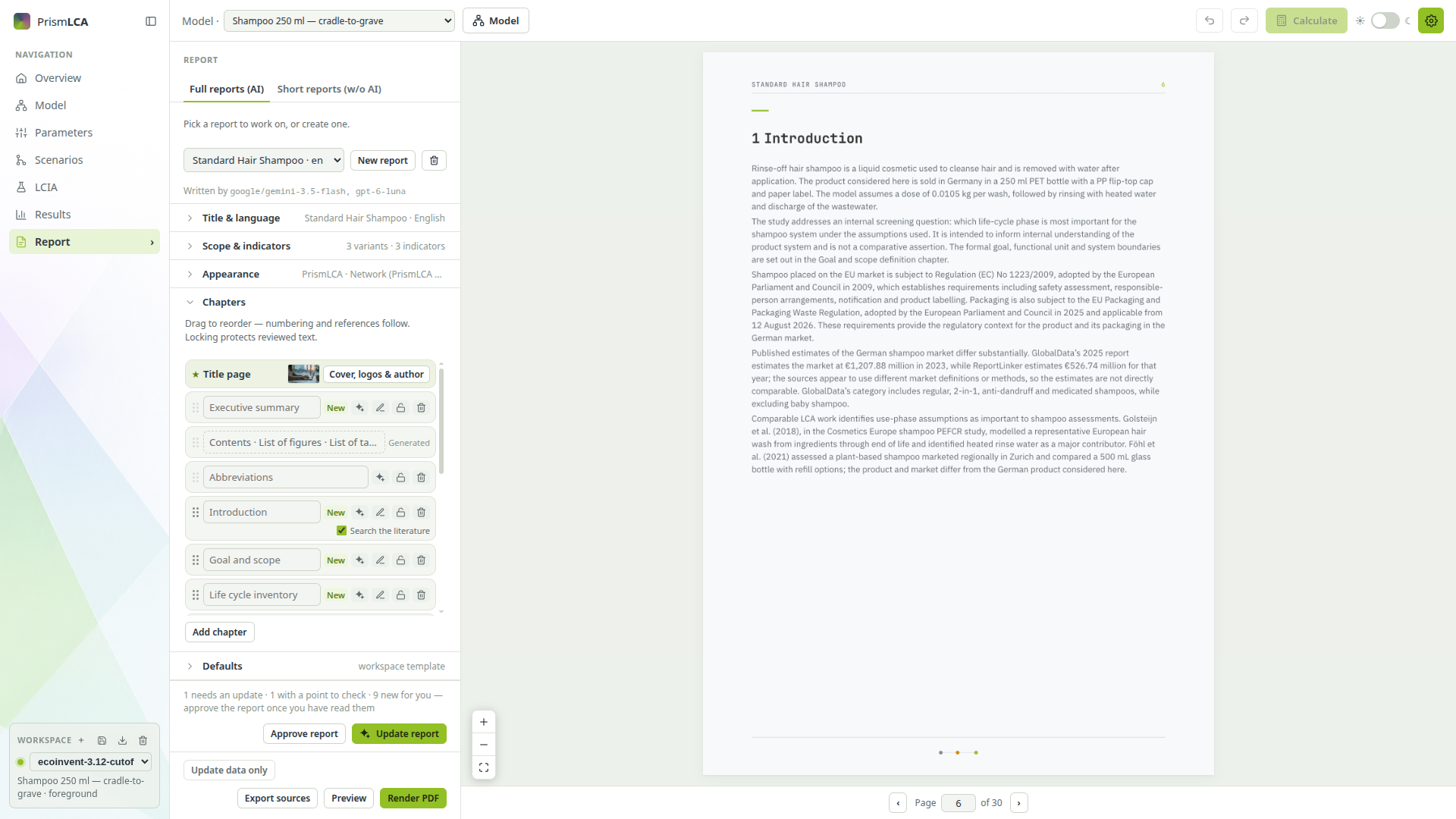
Calculate the model and open the Results page first, then go to Report in the sidebar, choose the tab Full reports (AI) and click New report. The new report starts from what the Results page shows: its indicators, the scenarios you ticked as variants and the dimension you stacked by as the contribution breakdown. Its language follows the language the study is documented in. A line under the report picker says what was taken.
This happens once. From then on the report owns its scope, and nothing you change on the Results page alters it.
To delete a report, pick it in the list and click the bin beside New report. PrismLCA asks first; the report goes with all its chapters, written ones included, and the model itself is not touched. The bin waits while chapters are being written.
Title & language#
The first group holds the report's name, a Subtitle (optional) for the cover (left empty, the cover shows the reference process) and the report language. Two more controls live here:
- Intended for disclosure to the public — tick it for a report that will be published. With more than one subject, it adds the ISO 14044 §7.3.3 note unless a critical review is recorded in the model info.
- Translate study texts — translates your process notes, scenario names and limitations into the report language. See Languages, themes and PDF.
Scope & indicators#
Settle this group before anything is written, because chapters are written against it. Change it later and PrismLCA tells you which chapters no longer match — honest, but avoidable work.
- Reference process and Amount (functional unit) — what the report is about, and how much of it.
- Contribution breakdown — None, By location or by one of your tag groups, such as life-cycle phase. With a breakdown, Contribution chart switches between Grouped and Stacked.
- Compare with — tick scenarios to add them as variants beside the baseline. From the second variant on, the report becomes a comparison and offers Heatmap of every indicator, Radar across the indicators and Difference worth reporting (5 % by default: below it, the check advises against calling one variant better).
- + Add indicator — pick at least one impact indicator; Done folds the picker away and the chosen ones stay as chips.
- Parameter sensitivity (tornado) — prints a tornado under the sensitivity check in Interpretation checks: each parameter of the reference process moved on its own, from the baseline. Tick the indicators you want a figure for (from the report's own) and choose ±10 %, ±25 %, ±50 % or Custom. The AI writer can quote its numbers; it needs the Interpretation checks chapter.
Arrange the chapters#
The Chapters group is where a report is worked on. A new report starts with Executive summary, Abbreviations, Goal and scope, System model, Life cycle inventory, Methods, Impact assessment, Contribution, Interpretation checks, Limitations, Conclusions, Annex and References.
- Title page (marked ★) is always first. Cover, logos & author opens its settings: this report's cover image and client logo, and your own name, company and logo, which every report shares.
- The front matter is pinned: the executive summary opens the document, followed by Contents · List of figures · List of tables (generated by the typesetter; a list disappears when there is nothing to list) and the abbreviations. The sparkle button on the Abbreviations chapter has a model explain the acronyms the document uses.
- Drag any other chapter by its handle, or focus the handle and use the arrow keys. Chapter numbers and cross-references such as "see Table 1" are resolved at typesetting time, so reordering is always safe.
- Type into a chapter's name to rename it. Click Add chapter, choose a type and confirm with the tick to add one; it lands where it belongs in the order. Written chapter is a free chapter for your own text; a new report already has one headed Interpretation. Introduction sets out the background before the goal and scope and is part of every new report too.
- Search the literature sits under the buttons of the Introduction and of every written chapter, and is ticked from the start: before it writes, the writer searches the web through your AI provider for regulation that concerns the product, its market and published LCAs of comparable products. Each search is billed by your provider and takes minutes. What it finds is listed with its sources in the References, and a figure from a finding may be quoted as the finding states it. Untick it and the chapter is written from the study record alone.
- The padlock locks a chapter: a locked chapter refuses every change, including from the assistant. The bin removes a chapter.
Let the assistant write#
The sparkle button on a chapter row (Write this chapter with AI now) sends the chapter to the report writing model (SettingsAIModelsReport writing model, by default the same as the chat model). The writer receives the chapter's instruction, the study metadata, the computed results and the contribution hotspots, and may look things up for itself — datasets, result trees, the characterisation factors of a method, the model's parameters. Before the chapter is stored, a second model reads it and the two settle what it objects to (see Review and approve a report). An empty chapter is written straight away. If the chapter already holds text, Replace this chapter? asks first; the old wording is kept, and Earlier wording in the chapter editor shows it, with Put it back to restore it.
A chapter can take minutes; its row says what is happening. You can leave the Report page meanwhile.
Write report, Update report#
The main button under the list says what a run is for: Write report while chapters are empty, Update report once something has moved under written ones, Rewrite report otherwise. It writes nothing at first. It opens a plan: every chapter, what would happen to it and why, with a tick beside each.
| Outcome | What it means |
|---|---|
| Write | The chapter is empty. Ticked. |
| Update | The model changed under the chapter, or you answered a question it asked. Ticked. The chapter is kept and only what is no longer true is changed. |
| Rebuild glossary | The abbreviation list, rebuilt last from the finished chapters. |
| Keep | Up to date, or written by you. Tick it to have it written anew (Write anew). |
| Waiting on a setting | Cannot be ticked; the reason names the missing setting. |
Run (it shows the number of steps) starts the run. It works on four chapters at a time, leaves locked chapters alone and writes the conclusions, then the executive summary, after the chapters they summarise. If the report language differs from the study's, the study texts are translated first. Cancel stops the run.
Numbers are never typed out#
Written chapters refer to figures by placeholder — {{results.0.score}}, not "0.1195" — and PrismLCA fills
them in when the report is typeset. Recalculate the model and the whole document prints the new figures without a word
being rewritten. That is also why a figure that merely moved puts no mark on the chapter list: the sentence is still
true.
Comparisons are computed too (sum, diff, percent, change,
factor), so "49.8 % above the baseline" stays true after a recalculation. A claim about the leader can be
written as {{rank:…}}; the chapter is then marked when the ranking changes hands.
Before a chapter is stored, a check verifies that every placeholder resolves, that no figure is typed out and that units match; the second model reads what the words claim about those figures. A chapter that cannot be finished is held as a draft, marked Couldn't finish, and is not part of the report.
The chapter editor#
The pencil on a row (Edit this chapter) opens the chapter in a sheet:
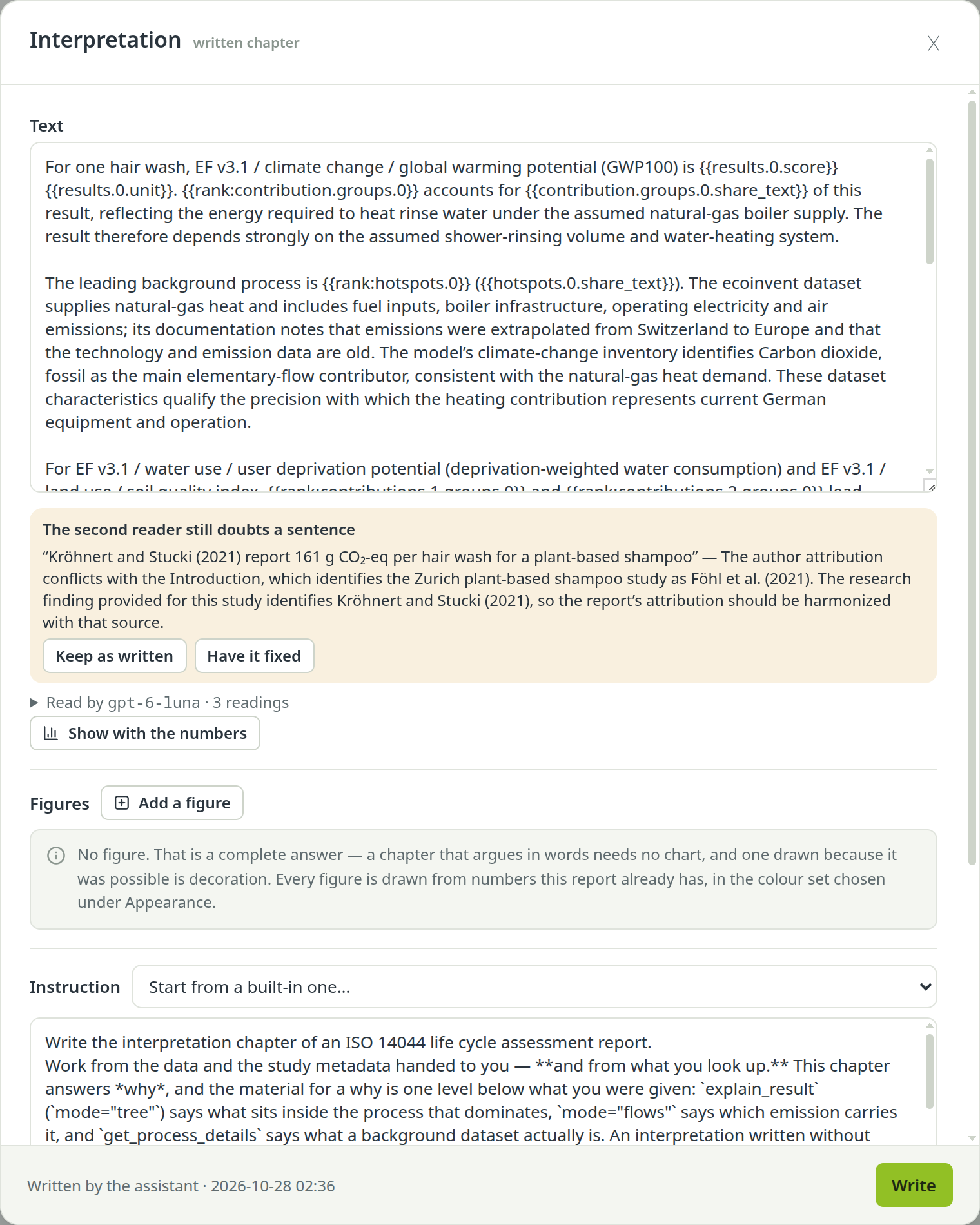
- Text — edit freely, and click away to store. Keep the
{{…}}placeholders in place and never type a number yourself. - Show with the numbers — the chapter as the document will read it, every placeholder worked out. Hover a figure to see what it points at. This is the fastest way to catch a well-written sentence about the wrong thing.
- Read by … — what the second model raised about the chapter and how each point ended; a sentence it still doubts comes with Keep as written and Have it fixed.
- Earlier wording — what the chapter said before its last change, with Put it back.
- Check & store and Discard draft — shown when a chapter could not be finished. Fix it (or the study data it contradicts) and check again.
- Instruction — what the chapter is asked to do. Start from a built-in one… picks another, and Back to the standard instruction undoes your change.
- Additional instructions for this chapter — appended to the instruction: house conventions, emphasis, what to leave out. The rules every chapter obeys (no literal numbers, no invented facts, the report's language) are appended as well and cannot be edited away.
Some chapters have options of their own, such as Process descriptions in the life cycle inventory or A chart per indicator in the impact assessment. Chapters built from data can carry a written comment under their tables.
Working through a report, start to finish#
The order that costs least and surprises least, once you trust your results.
Settle the scope#
Create the report, then check Scope & indicators: reference process, amount, indicators, variants and breakdown. Fill any gaps the group reports in the model info.
Arrange the chapters#
Add, remove, rename and reorder until the list is the document you want.
Write everything once#
Click Write report, read the plan, untick what you would rather write by hand, and press Run.
Answer the questions#
Where the writers could not settle something from the data and the study, their questions stand above the list. Answer them: the chapter that asked is updated with your answer right away.
Read what came back, with the numbers in it#
Open each chapter marked New and use Show with the numbers. Edit wording freely, keeping the placeholders.
Approve the report#
Press Approve report once you have read it. See Review and approve a report.
After a model change, update#
Recalculate; chapters whose wording is at risk say Needs update. Press Update report: the writer changes only the sentences that went false, the reader reads them, and you read what is marked New.
Check, then export#
No question should be open, nothing should say Needs update, and the preview should show no
[missing: …]. Then click Preview and Render PDF.
See also: The short report