HandbookGet started
Set up your first workspace
PrismLCA ships without background data. On this page you bring some in — the free BAFU database or your own ecoinvent — and end with a workspace that is ready for your first model.
The welcome tour#
On the very first start, PrismLCA opens with a tour of ten cards. It explains how the app thinks: why there is no background data in the box, how the sidebar maps the steps of a study, why there is no Save button, and what the optional AI assistant costs and sends. Page through it with Next and Back (or the arrow keys); Finish on the last card closes it.
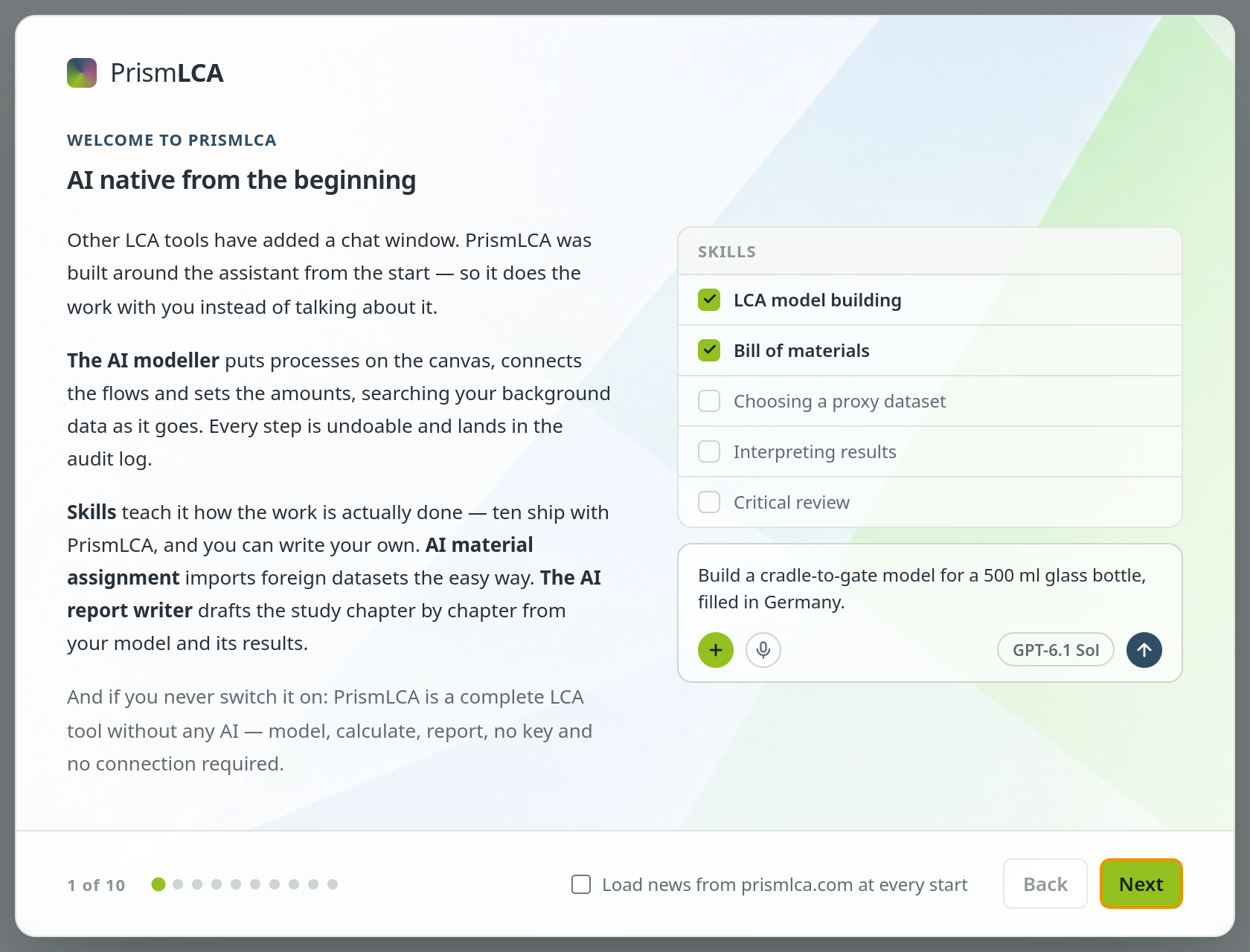
The tour has no close button on purpose — it takes two or three minutes, and it answers most first questions. The last card has a checkbox, Load news from prismlca.com at every start. It is off unless you tick it.
“Bring your background data”#
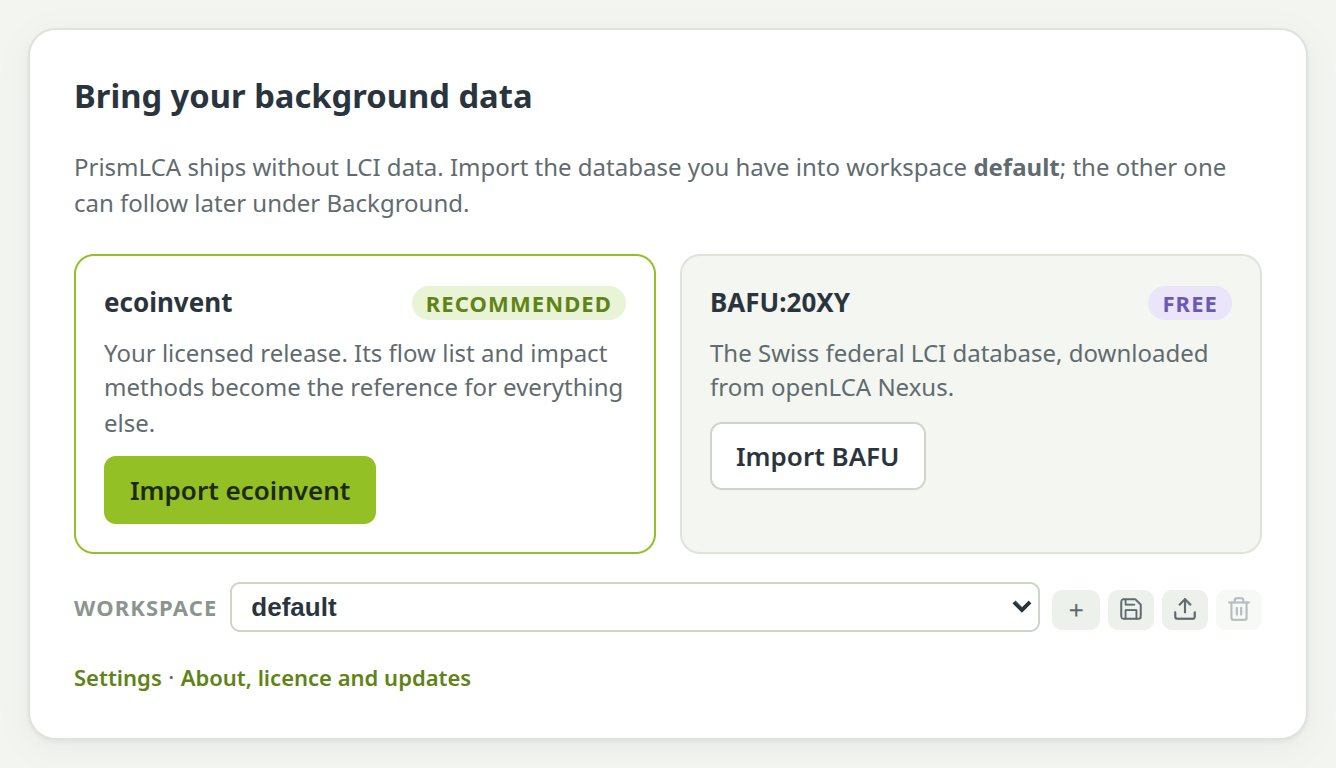
After the tour, PrismLCA shows a single card titled Bring your background data. Until a background database is imported, search finds nothing and nothing can be calculated, so the rest of the app waits behind this card. It offers the two supported databases side by side: ecoinvent, marked as recommended, and BAFU:20XY, which is free, each with its import button.
Choose your background data#
Background data is everything you do not model yourself: electricity, materials, transport, waste treatment. PrismLCA supports two databases, and a workspace can hold one of each.
- No ecoinvent licence? Import BAFU. Everything in this handbook works with it, including the tutorials.
- You have ecoinvent? Import ecoinvent first. Its list of elementary flows and its impact methods become the reference for everything else. You can add BAFU later and use both side by side.
- BAFU now, ecoinvent later? That works too. PrismLCA then rewrites the BAFU data onto ecoinvent's flow list and replaces the provisional impact methods (see the note in the BAFU tab below).
Get the files#
The Swiss Federal Office for the Environment (BAFU/FOEN) publishes the database free of charge, updated about once a year. It is distributed through openLCA Nexus: sign in with a free Nexus account, accept the terms of use (no resale, cite the source) and download it. The import sheet in PrismLCA links to the same page.
Download and unzip#
Unzip the download. Among other things it contains a folder called
ecoSpold files, with one XML file per dataset (11 947 in BAFU:2026 v1). That folder is the one PrismLCA needs.Keep the folder name#
PrismLCA reads the release (for example
2026 v1) from the folder names of the download. Leave them as they are.
You need two archives from the same ecoinvent release. Both are on ecoinvent's ecoQuery, where you sign in with your licence: open Files for your release and system model — for 3.12 cut-off that is ecoquery.ecoinvent.org/3.12/cutoff/files. The datasets archive is in the main list; the LCIA archive is further down the same page, under Supporting documents. The import sheet in PrismLCA links to this page as well.
| Archive (example: 3.12) | What PrismLCA takes from it |
|---|---|
ecoinvent 3.12_cutoff_ecoSpold02.7z | The datasets folder (the inventory)
and, beside it, MasterData/ElementaryExchanges.xml (the list of elementary flows). |
ecoinvent 3.12_LCIA_implementation.7z | The workbook
LCIA Implementation 3.12.xlsx: the impact methods, such as EF, IPCC, ReCiPe and CML. |
Extract both archives#
The files are
.7zarchives. On Windows, use a tool such as 7-Zip (free). On Linux, use your archive manager or the command line:7z x "ecoinvent 3.12_cutoff_ecoSpold02.7z" 7z x "ecoinvent 3.12_LCIA_implementation.7z"The first archive unpacks to about 3.7 GB.
Leave the folder structure alone#
After extracting you have a folder with
datasetsandMasterDataside by side. Keep them together: PrismLCA looks forMasterDatanext to thedatasetsfolder you point it at.Extracted, the two archives look like this (shown for 3.12 cut-off):
datasets/                      about 26,500 .spold files
MasterData/                    ElementaryExchanges.xml and 19 other lists
FilenameToActivityLookup.csv
LCIA Implementation 3.12.xlsx  from the second archive
LCIA Implementation 3.12.pdf
Import step by step#
Open the import#
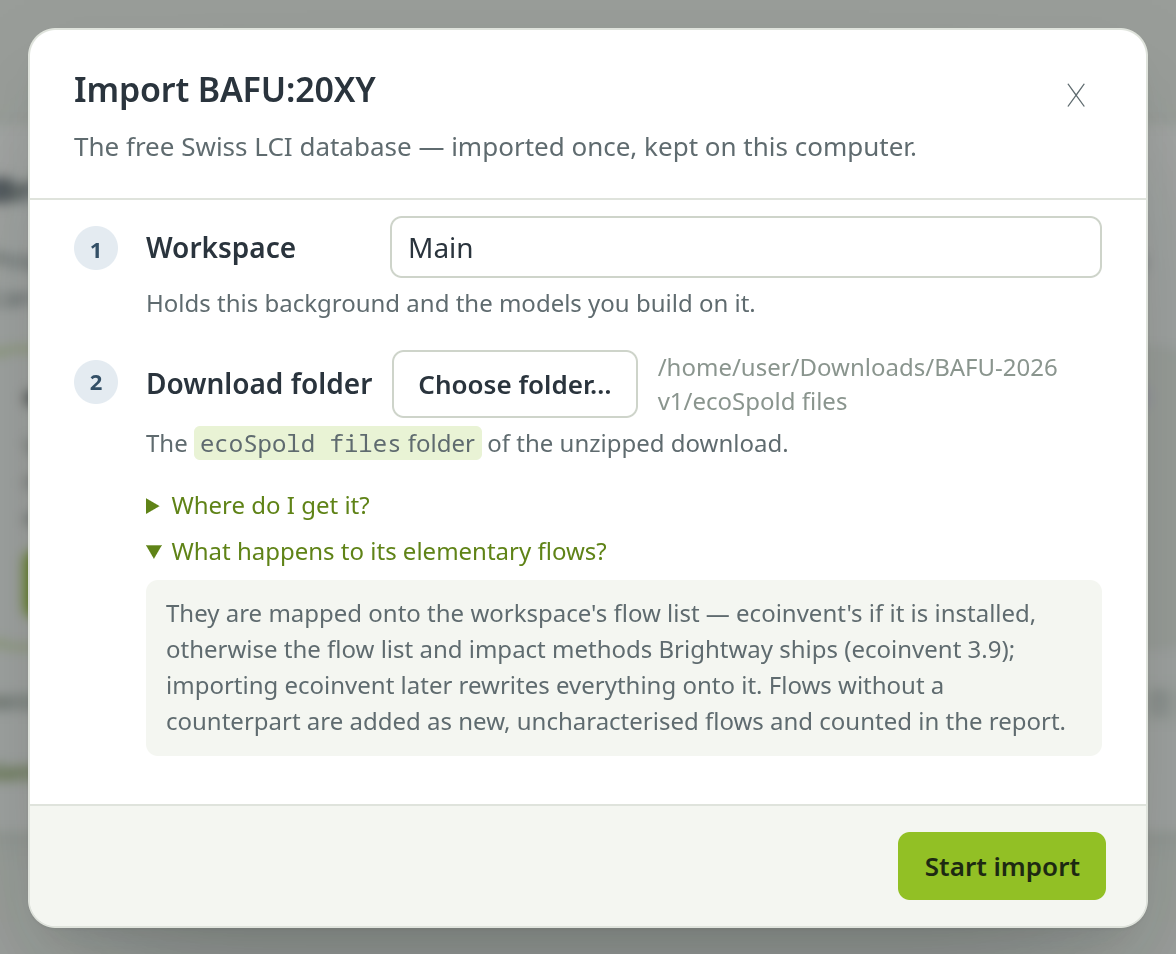
Choose Import BAFU on the first-run card. The sheet Import BAFU:20XY opens.
Name the workspace#
On a fresh installation the sheet first asks for a Workspace name and proposes Main. Keep it or type your own. The workspace is created when the import starts.
Choose the folder#
Under Download folder, click Choose folder… and select the
ecoSpold filesfolder. The path appears beside the button. Where do I get it? and What happens to its elementary flows? open the background under the steps.Start#
Click Start import. The button changes to Importing… and a progress bar shows how far it is.
Open the import#
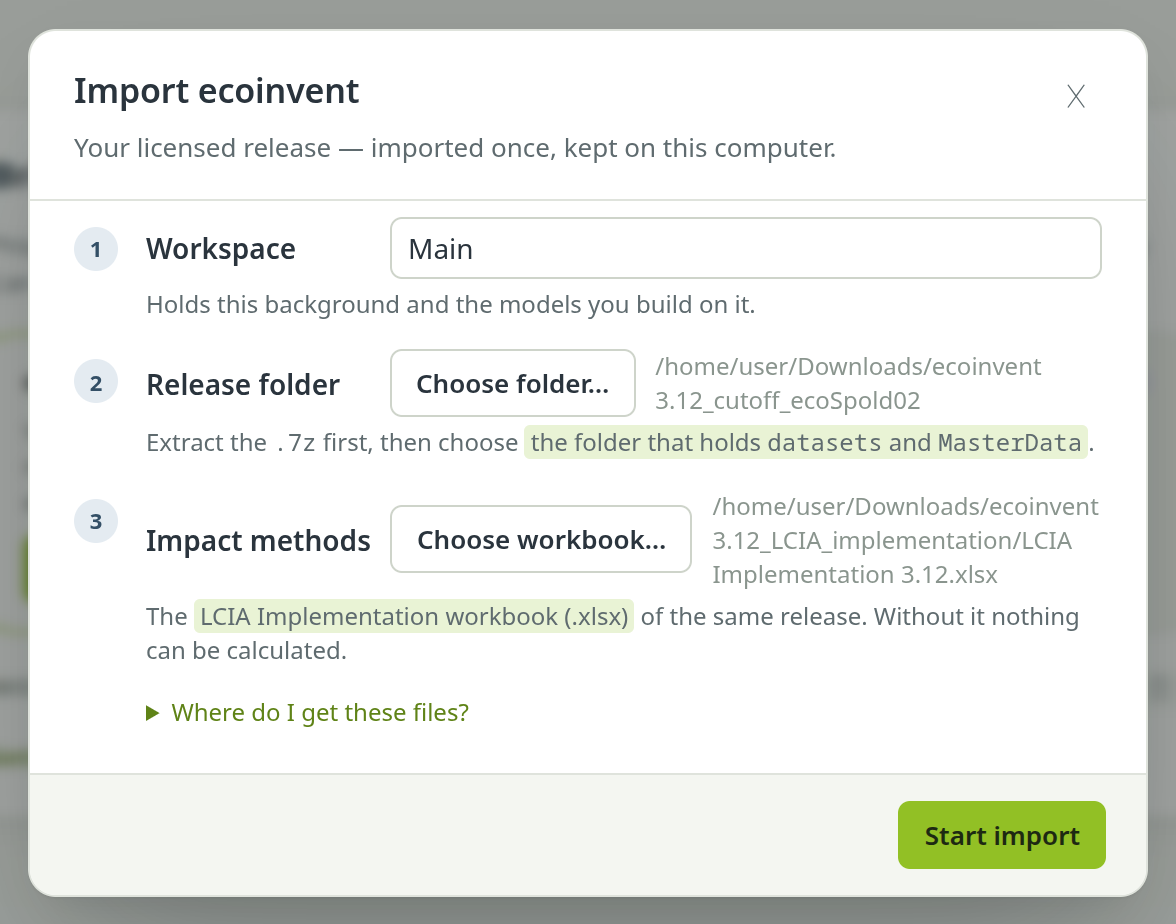
Choose Import ecoinvent on the first-run card. The sheet Import ecoinvent opens.
Name the workspace#
On a fresh installation the sheet first asks for a Workspace name and proposes Main. Keep it or type your own. A later ecoinvent release can get a workspace of its own beside it.
Choose the release folder#
Extract the
.7zarchive first. Then, under Release folder, click Choose folder… and select the extracted folder — the one that holdsdatasetsandMasterData. Choosingdatasetsitself works too.Choose the workbook#
Under Impact methods, click Choose workbook… and select
LCIA Implementation 3.12.xlsx(or the one of your release). Where do I get these files? under the steps says where both come from.Start#
Click Start import. A status line names each step: building the flow list, reading and linking the datasets, linking the impact methods.
How long it takes#
| BAFU | ecoinvent | |
|---|---|---|
| Import | One to two minutes | About 5 to 10 minutes; reading and writing the datasets take longest |
| Memory during the import | Modest | About 6 GB at the peak |
The import runs in the background and the window stays responsive. Leave PrismLCA open until it has finished.
What you see at the end#
When the import is done, the sheet stays open and shows a summary under Imported:
- the database and how many datasets it holds,
- Cite as: — the citation to use for this database,
- for BAFU, how many exchanges were mapped onto the workspace's flow list, and a table of the few new flows that have no characterisation factor (noise, for instance). They are counted so that you know what the impact methods cannot see.
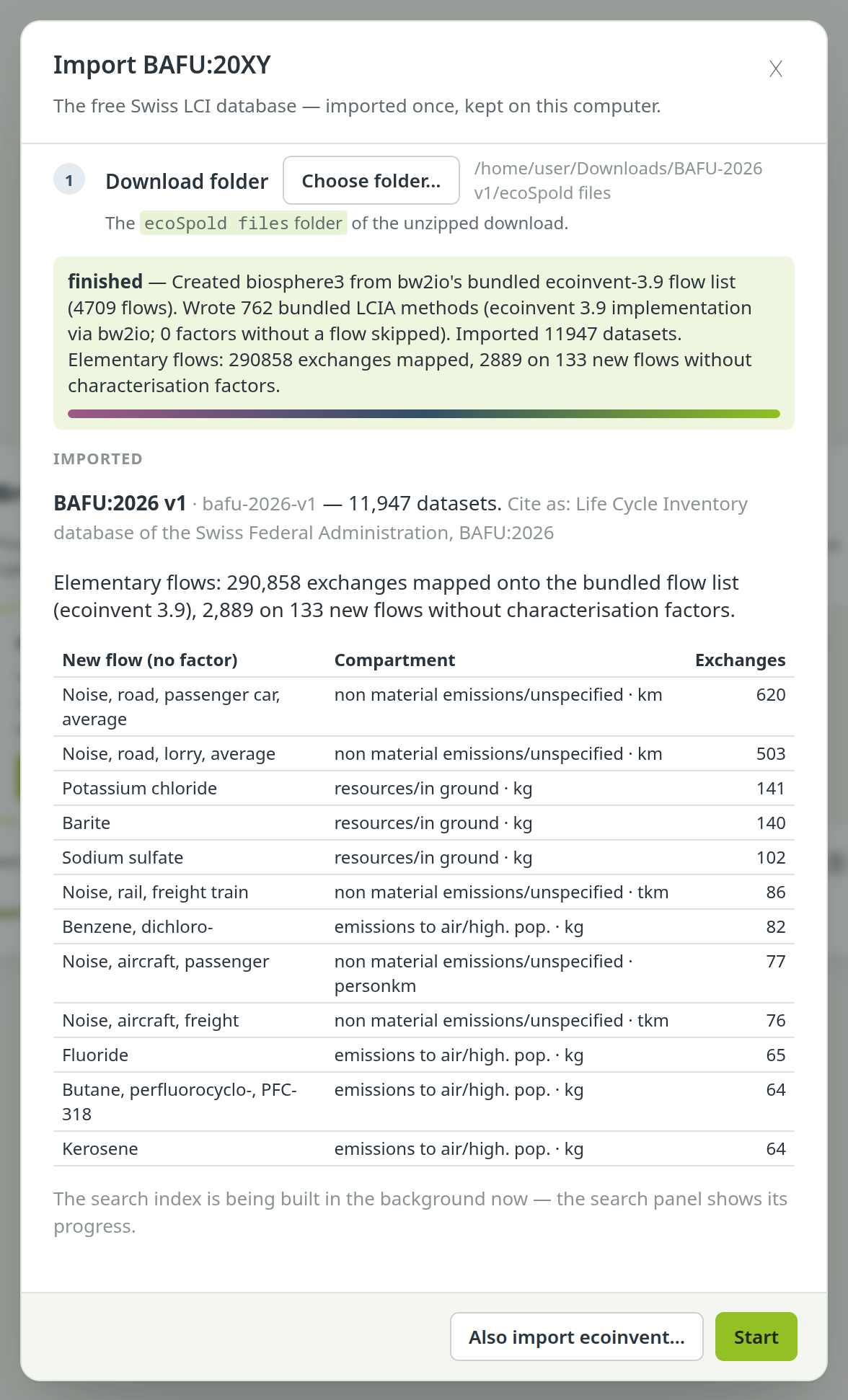
Click Start. PrismLCA opens on the Overview, where New model… creates your first model. Next to Start, Also import BAFU… (or Also import ecoinvent… after a BAFU import) runs the second import straight away; you can also add it later under Background.
The search index builds in the background#
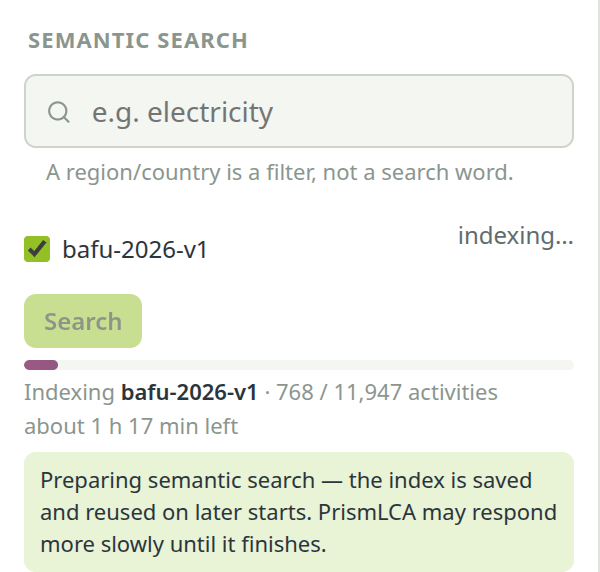
PrismLCA finds datasets by meaning, not only by exact words. For that it builds a search index of the new database right after the import. The search panel on the Model page shows the progress: first the database's datasets, then, after an ecoinvent import, the flows of the biosphere (fewer, and faster), each with the time it has left. On a computer without a graphics card this takes about an hour for BAFU and one to two hours for ecoinvent, depending on the computer — a rough figure, not a limit.
The index is saved: later starts use it right away. It is built again only when a database changes or you rebuild it on purpose. While it is being built, PrismLCA can answer more slowly, because the build uses every processor core.
Later: a second database, more methods, starting over#
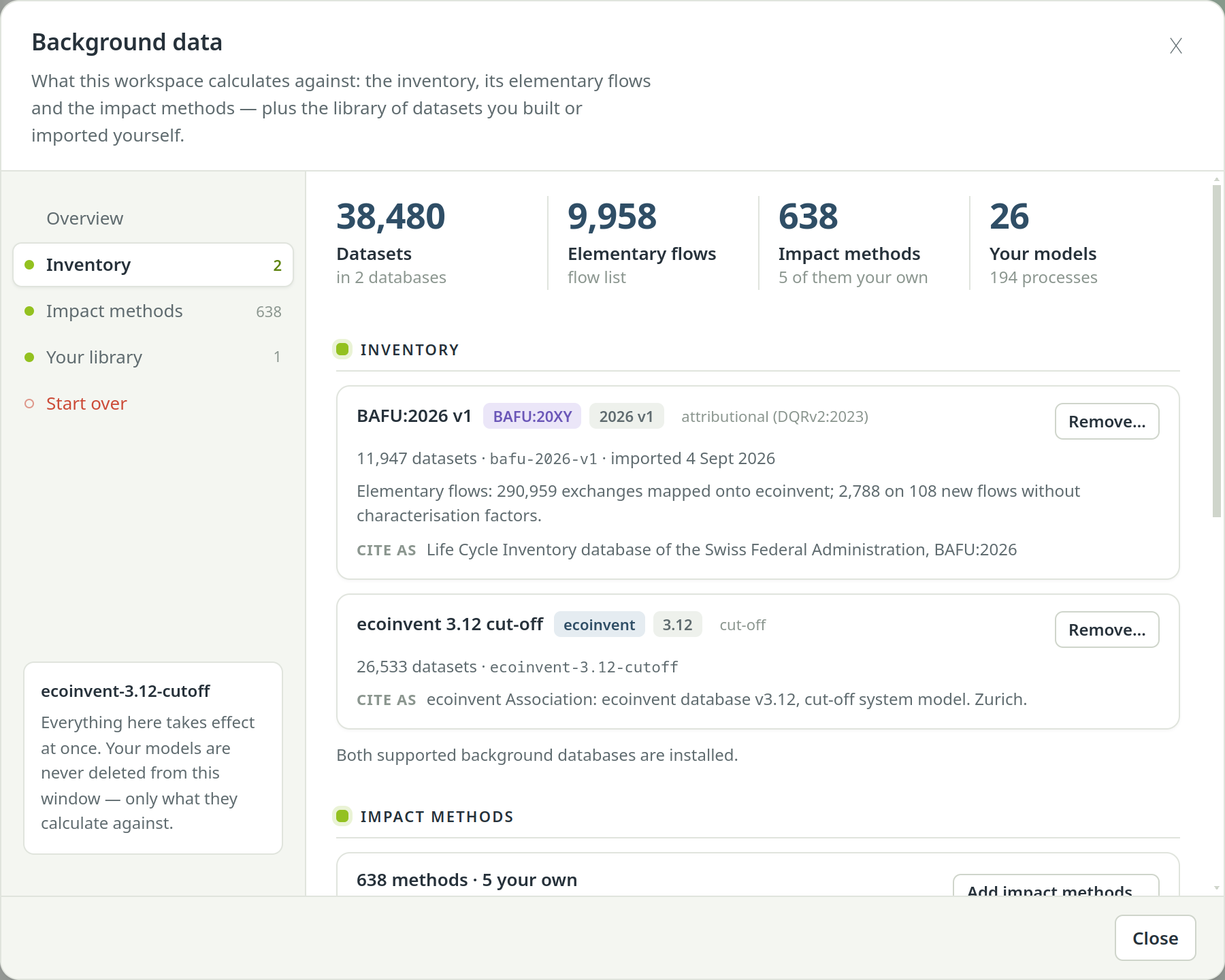
Everything about the background lives behind the Background button in the Overview toolbar: what the workspace stands on, the import of the database you do not have yet (Import BAFU:20XY… or Import ecoinvent…), Add impact methods…, removing a database, and Start over. See Background databases and Workspaces, backups, starting over.
See also: Key ideas in five minutes · Tutorial: your first model