HandbookData
Workspaces, backups and starting over
A workspace holds your background data and every model built on it. This page shows how to keep several workspaces, switch between them, back one up, delete one, and how to clear a workspace's background data to import it again.
What a workspace is#
A workspace is one self-contained world. It holds:
- the background data: at most one ecoinvent and one BAFU database, with their elementary flows and impact methods (see Background databases);
- your library, My processes (see Your library: My processes);
- your models, with their parameters, scenarios, tags, reports, chats and audit log.
Nothing links across workspaces: a model in one workspace cannot use a dataset from another. That is what makes a workspace the right unit for a second ecoinvent release. Import it into a new workspace, and the old one stays exactly as it was, with results you can compare.
The Workspace block in the sidebar#
At the bottom of the sidebar, below the navigation, the Workspace block shows the workspace you are in. Under its name, a grey line names the open model. Four small buttons sit beside the title Workspace:
- + — New workspace
- Creates a new, empty workspace.
- Disk icon — Back up this workspace
- Writes the whole workspace into one archive file.
- Upload icon — Restore a workspace backup
- Brings such an archive back as a workspace of its own.
- Bin icon — Delete workspace
- Deletes the workspace you are in, with all its data.
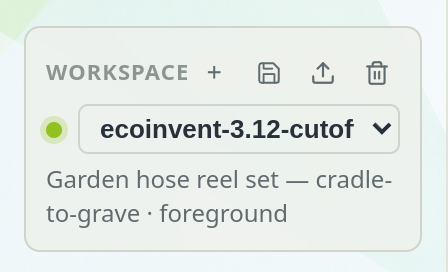
If the sidebar is folded to icons, the Workspace block is hidden. Click the empty area below the icons to unfold it.
Switch workspaces#
Choose another workspace in the dropdown of the Workspace block. PrismLCA closes the model you were working on — every change is already stored — and opens the other workspace with its own models, background data and audit log.
Create a new workspace#
Choose +#
In the Workspace block. The dialog New workspace opens.
Give it a name#
Choose a name that says what it holds — for example
ecoinvent-3.11for a second release. Then choose Create.Import background data#
The new workspace is empty, so PrismLCA shows the Bring your background data card with Import ecoinvent and Import BAFU. The import works as described in Set up your first workspace.
On a fresh install you never see this dialog: the first import asks for a Workspace name and proposes Main.
Back up a workspace#
A backup is a copy of the whole workspace in one .tar.gz archive: the background databases, the impact
methods, the search indexes, your library, every model, and everything PrismLCA keeps beside them — parameters,
scenarios, tags, reports, chats and the audit log.
Choose the disk icon#
In the Workspace block (Back up this workspace).
Pick a folder#
Choose where the archive should go.
Confirm#
The dialog Write a workspace backup? says roughly how large the archive will be and where it goes. With ecoinvent installed, expect several gigabytes. Choose Write backup.
Note the path#
When it is done, Backup written shows the full path of the file. Its name starts with
brightway2-project-, followed by the workspace name and the date and time.
Restore a backup#
Start the restore#
In the Workspace block, choose the upload icon next to the backup icon (Restore a workspace backup) and pick the
.tar.gzfile. The same icon is on the Bring your background data card, so a fresh installation can start from a backup.Confirm#
PrismLCA shows the file and asks before it starts. The backup becomes a workspace of its own; nothing existing is replaced. A large backup takes a few minutes.
Choose a name if asked#
The workspace keeps the name it had when it was backed up. If a workspace of that name exists already, PrismLCA asks for another name — it never overwrites one. To replace a workspace, delete it first.
Switch to it#
Workspace restored offers Switch to it; you can also pick it in the workspace list later.
Delete a workspace#
Switch to the workspace#
The bin icon deletes the workspace you are in.
Choose the bin icon#
In the Workspace block (Delete workspace). A dialog names the workspace and asks again.
Confirm with Delete#
PrismLCA deletes the workspace with all its databases, methods and models, and takes you to the workspace called default.
The default workspace itself cannot be deleted: Brightway always keeps one. Its bin icon is greyed out.
Start over#
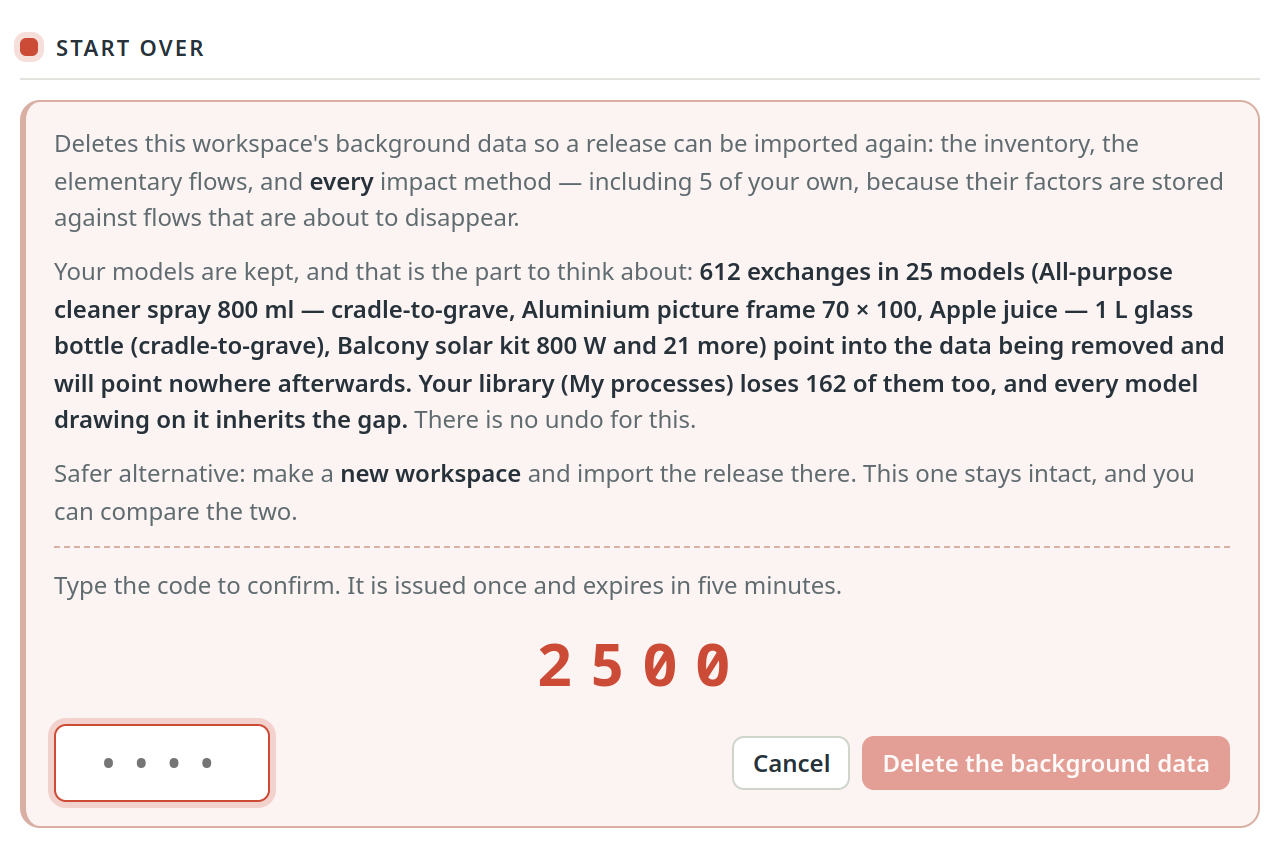
If an import went wrong, or you want to import a release again into the same workspace, you can delete the workspace's background data and keep the workspace and your models.
What is deleted, what stays#
- Deleted: the inventory, the elementary flows and every impact method — including the methods you built yourself, because their factors are stored against flows that are about to disappear.
- Kept: your models and your library. But every exchange in them that pointed at a background dataset or an elementary flow will point nowhere afterwards. The section counts these exchanges for your actual workspace and names the models affected. Read that line rather than the general warning.
How to do it#
Open the Background panel#
On the Overview, choose Background, then Start over in the left rail.
Choose Start over…#
PrismLCA shows a four-digit code. It is issued once and expires after five minutes, so this deletion cannot happen by reflex.
Type the code#
Type it into the field below and choose Delete the background data. Cancel backs out.
Import again#
The workspace now has no background data. Import the release you want under Background — see Set up your first workspace.
Where your data lives#
All workspaces live in PrismLCA's data folder in your user account, each as a Brightway project in its
brightway subfolder. The folder paths for Windows and Linux are on
Install PrismLCA. Uninstalling PrismLCA leaves them in place.